
Schedule and manage viewings
Hosts set a weekly availability schedule per listing; renters book a slot from the chat with Schedule a Viewing; both sides confirm, reschedule, or cancel from Requests and the chat.
For hosts: set your availability
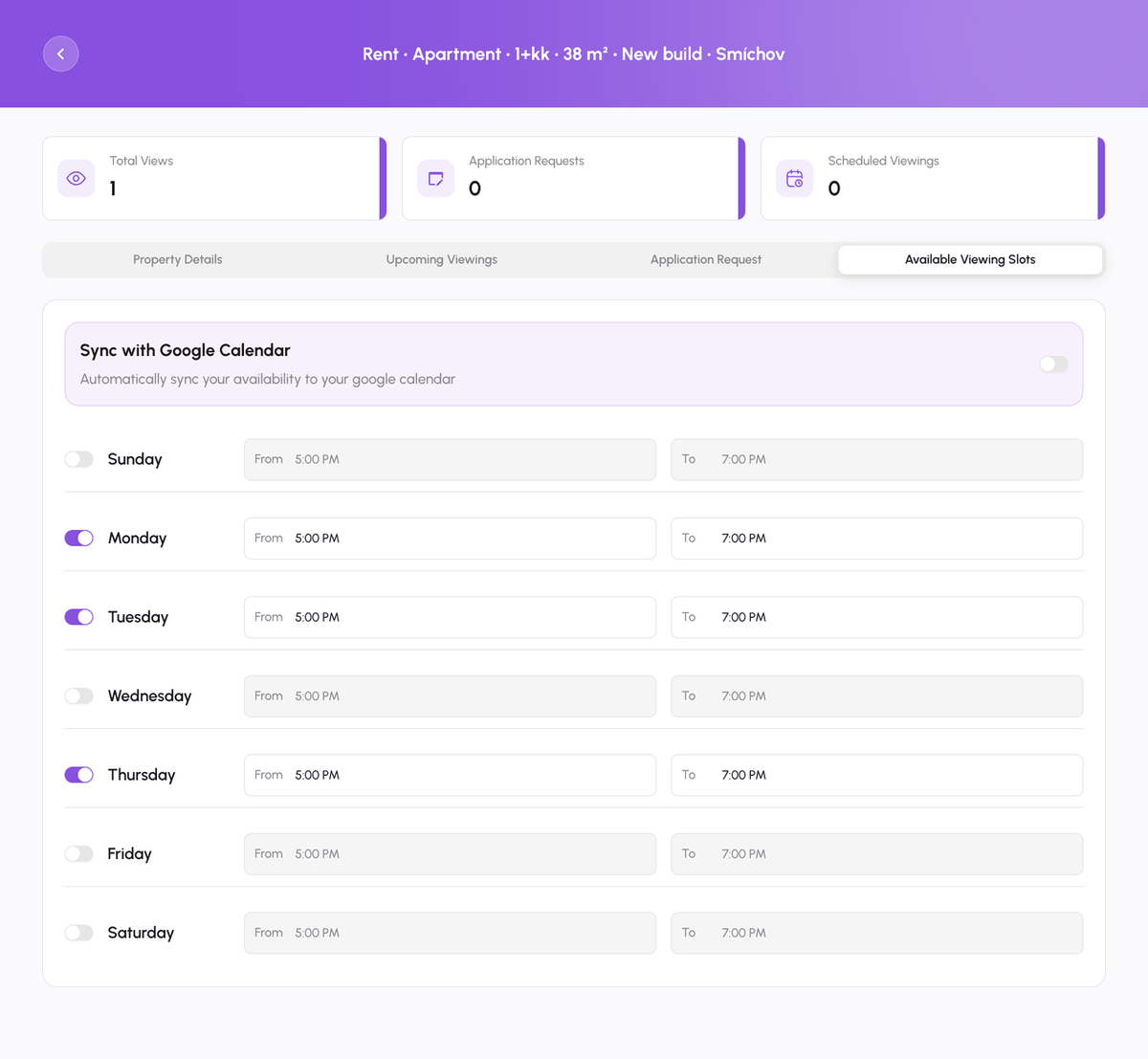
Open Manage, find the listing, and tap Manage Schedule. This opens the listing's Available Viewing Slots tab: switch on the weekdays you can show the place and set a From and To time for each (9:00 AM to 5:00 PM by default). Renters only see and book inside these windows. Switch on Sync with Google Calendar so bookings land in your calendar and busy times are hidden automatically.
For renters: book a slot
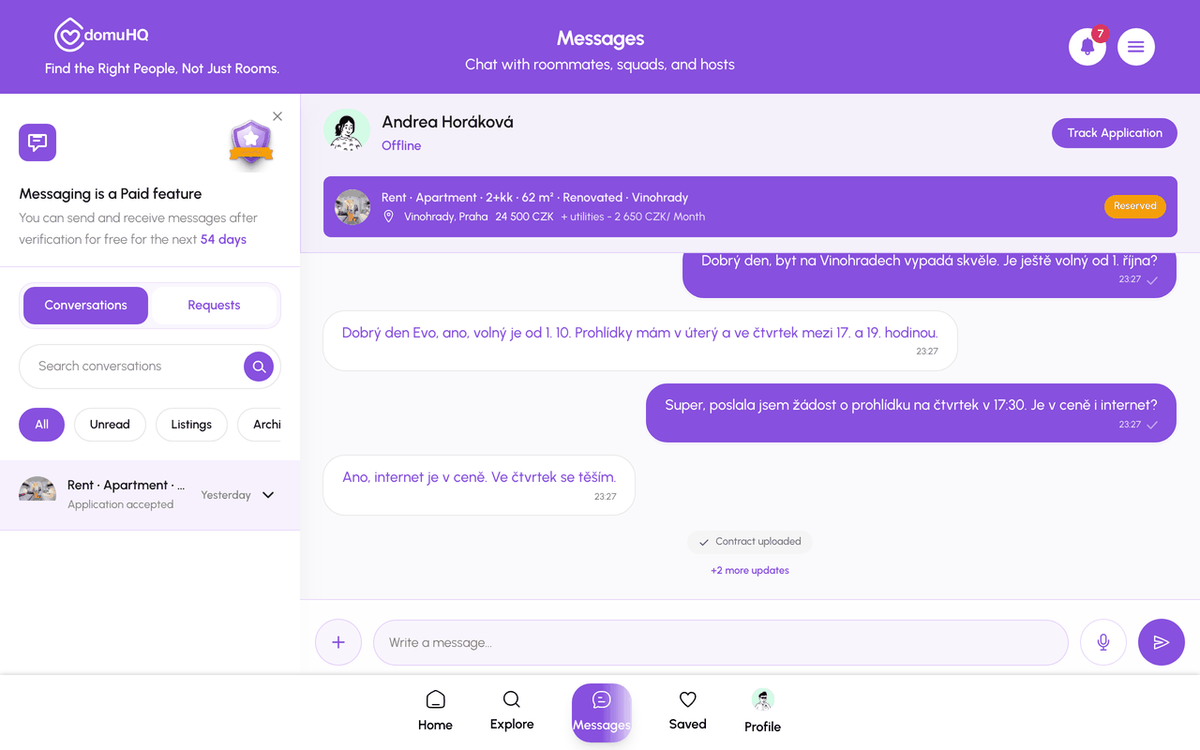
In the conversation about the listing tap Schedule a Viewing in the header. Pick a date and one of the available times, add a note, and send. The host gets a Viewing Request. Until they answer, the header shows the pending request; when they accept you see Viewing Confirmed with the date and time, and it appears under Explore, Properties, Applications & Viewings.
Accepting, declining, rescheduling
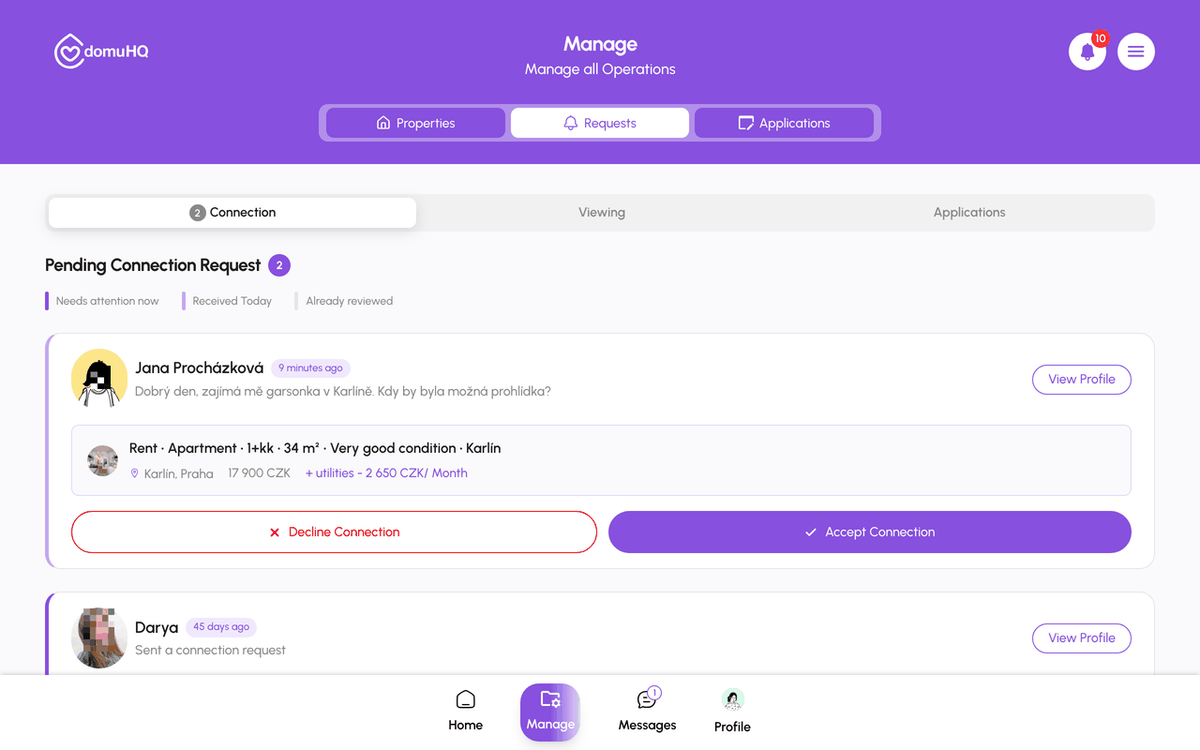
Hosts see requests under Manage, Requests, Viewing with the renter's profile and the requested time, and Accept or Decline. Either side can propose a new time: the other person sees "New time proposed" and taps Accept time or suggests another. Cancel from the same place if plans change; the other side is notified.
Before the viewing (renters)
- Confirm the day before with a short message.
- Bring an ID; hosts may want to see who they are meeting.
- Check what photos hide: light at that hour, street noise, water pressure, the bathroom.
- Ask about utilities, heating cost, deposit, minimum lease, and who to call when something breaks.
After the viewing
Interested? Say so in the chat the same day and tap Apply for Apartment. Not interested? A one-line thank-you is polite and takes ten seconds.
Step-by-step
- 1
Host: open Manage Schedule
2 minutesManage, Properties, then Manage Schedule on the listing. Switch on weekdays, set From and To times, optionally Sync with Google Calendar.
- 2
Renter: tap Schedule a Viewing
30 secondsIn the listing chat header tap Schedule a Viewing, pick a date and time, and send the request.
- 3
Host: answer the request
10 secondsManage, Requests, Viewing tab. Accept, Decline, or propose a new time.
- 4
Both: confirm or reschedule
10 secondsA confirmed viewing shows in the chat header and under Applications & Viewings (renter) or Upcoming Viewings on Home (host). Use the confirmation card to reschedule or cancel.
Frequently asked questions
I do not see Schedule a Viewing.
The host has not set availability for that listing yet. Ask them in the chat; once they save a schedule the button appears.
Does DomuHQ add the viewing to my calendar?
Hosts can sync Google Calendar. Renters get an in-app reminder and a notification; add it to your own calendar from the confirmation.
Can I book a viewing before contacting the host?
No. Viewings are booked from the listing conversation, so contact the host first.
Related articles
Handle requests and review applications as a host
Connection, viewing, and application requests all arrive under Manage, Requests. Open the applicant, check the Verified badge and their answers, request documents if needed, then Accept Application or Reject.
BeginnerRenting in the Czech Republic: what expats should know
The Czech rental market has its own rules: deposit caps, lease formats, layout codes, and which documents matter for residency. A practical primer.
Beginner