
Contact a host, apply, and withdraw an application
Applying on DomuHQ is a conversation first: Contact the host from the listing, ask what you need, then Apply for Apartment from the chat header. One tap sends your profile and application template.
Stage 1: contact
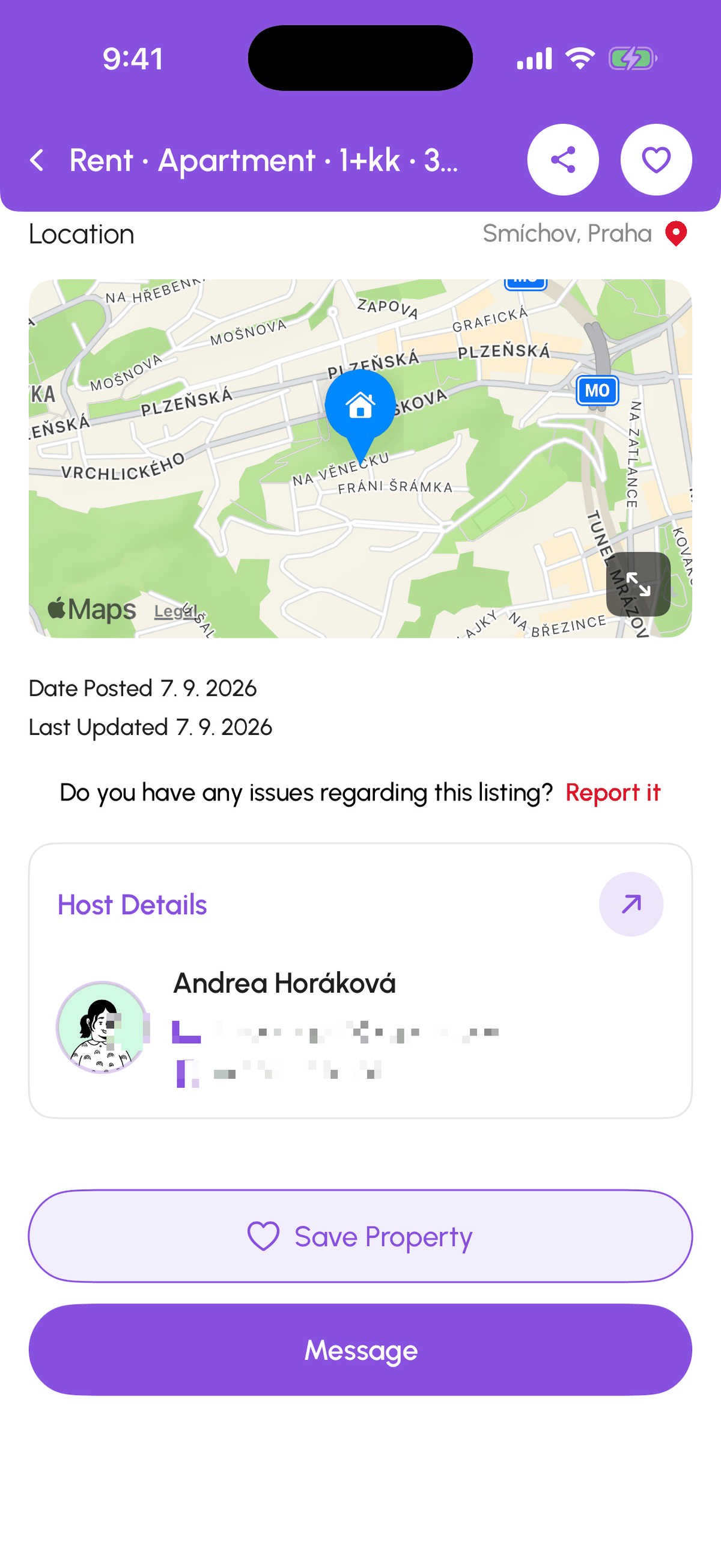
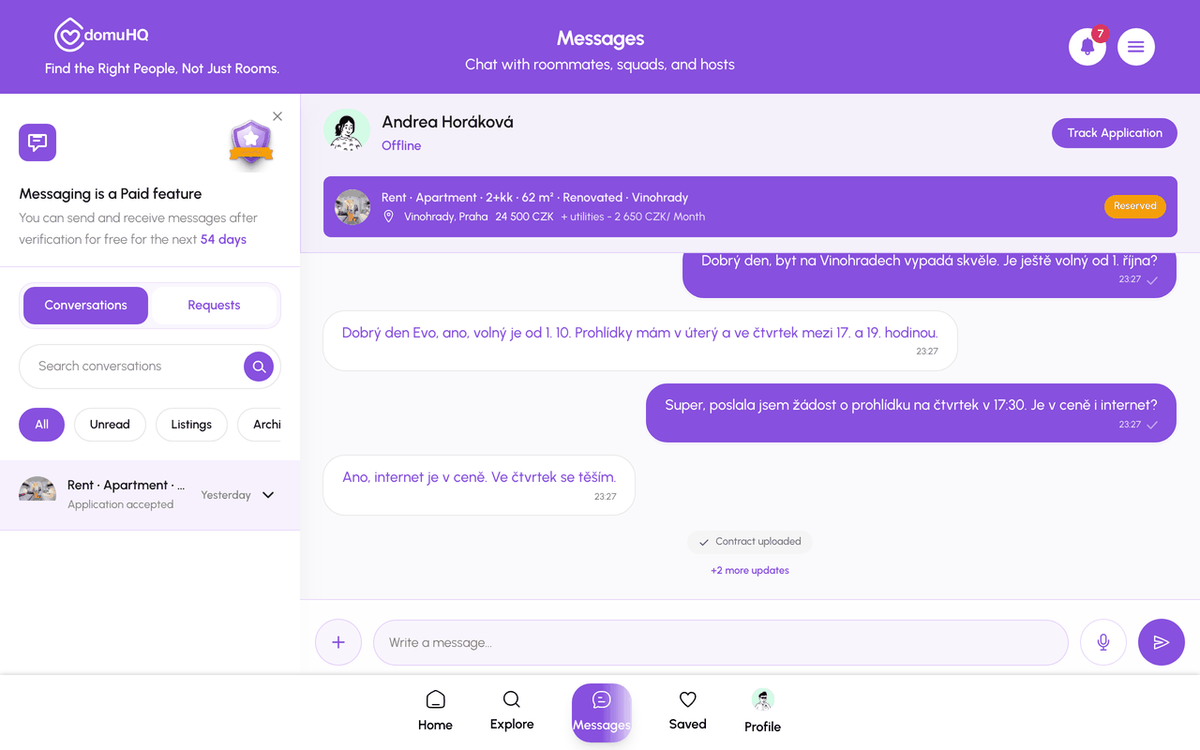
Tap Contact on a listing card or Contact Landlord on the property page. This opens a conversation tied to that listing: the header pins the property photo, title, rent, and status badge (Available, Reserved, Rented). The host gets a connection request under Manage, Requests and accepts it to reply. You can contact several hosts; each listing gets its own chat.
Stage 2: ask and view
Use the chat for everything informal: utilities, heating bill, neighbours, pets, deposit. The header also offers Schedule a Viewing when the host has published availability; see Schedule and manage viewings. Most decisions are made here, before any paperwork.
Stage 3: apply
When you are ready, tap Apply for Apartment (or Apply for Room) in the chat header and confirm. There is no form to fill in at that moment: the host receives your Renter profile, your verification status, and the answers from your application template. The button changes to Application Pending and a status card appears in the chat. Set up the template once in Profile, My Hub, Application Templates: a message to the host, About Me, Employment, and Additional Notes, and it is reused for every application.
Stage 4: accepted
When the host accepts, you get a notification, the chat shows a card, and the header button becomes Track Application. From here on the formal steps (contract, signing, payment, move-in) happen on the Track Application page; see Track your application from accepted to move-in. If the host rejects, the chat shows that too and the listing stays open for others.
Withdrawing
Tap Application Pending in the header and choose Withdraw application. The host is notified. You can apply again later if things change.
Squads
A Squad applies as one team from the squad page after a property vote; see Apply as a Squad and track the application.
Speed matters
Good listings in Vinohrady, Karlín, or Letná get dozens of enquiries on day one. A complete profile, a filled-in template, and a message within hours beats a perfect message three days later.
Step-by-step
- 1
Contact the host
5 secondsTap Contact on the card or Contact Landlord on the property page.
- 2
Set up your application template
5 minutesProfile, My Hub, Application Templates: write the message, About Me, and Employment once. Hosts see this with every application.
- 3
Chat and schedule a viewing
variesAsk what the listing does not say. Use Schedule a Viewing in the header when you want to see the place.
- 4
Apply for Apartment
10 secondsTap Apply for Apartment in the chat header and confirm. The button reads Application Pending until the host decides.
- 5
Track it
ongoingOnce accepted, tap Track Application in the header.

Frequently asked questions
What is the difference between Contact and Apply?
Contact opens the conversation and does not commit you. Apply sends the formal application for that listing. Most people contact, ask a few questions, view, then apply.
Do I need DomuPlus to apply?
Yes, and a verified identity. Every plan is free until 2027: switch to DomuPlus in Manage Subscription.
Can I apply to several listings?
Yes. Each application is tracked separately under Explore, Properties, Applications & Viewings.
Where do I upload income proof or a guarantor letter?
The host can request documents after you apply (Request additional documents); you upload them into the same conversation. They are not part of the initial application.
What to do next
- Schedule and manage viewingsHosts set a weekly availability schedule per listing; renters book a slot from the chat with Schedule a Viewing; both sides confirm, reschedule, or cancel from Requests and the chat.
- Track your application from accepted to move-inAfter a host accepts you, Track Application shows every step from lease to move-in, with a button when it is your turn. Here is the exact pipeline for each listing type.
Related articles
Search listings and read a property page
Where listings live, how the filters work, what a listing card and property page tell you, and what Contact and Details do.
BeginnerMessages: conversations, requests, and chat actions
How the Messages tab is organised, what the filter chips mean, what the property chat header can do, and how to archive, pin, mute, block, or report a conversation.
BeginnerRenting in the Czech Republic: what expats should know
The Czech rental market has its own rules: deposit caps, lease formats, layout codes, and which documents matter for residency. A practical primer.
Beginner