
Messages: conversations, requests, and chat actions
How the Messages tab is organised, what the filter chips mean, what the property chat header can do, and how to archive, pin, mute, block, or report a conversation.
Conversations and Requests
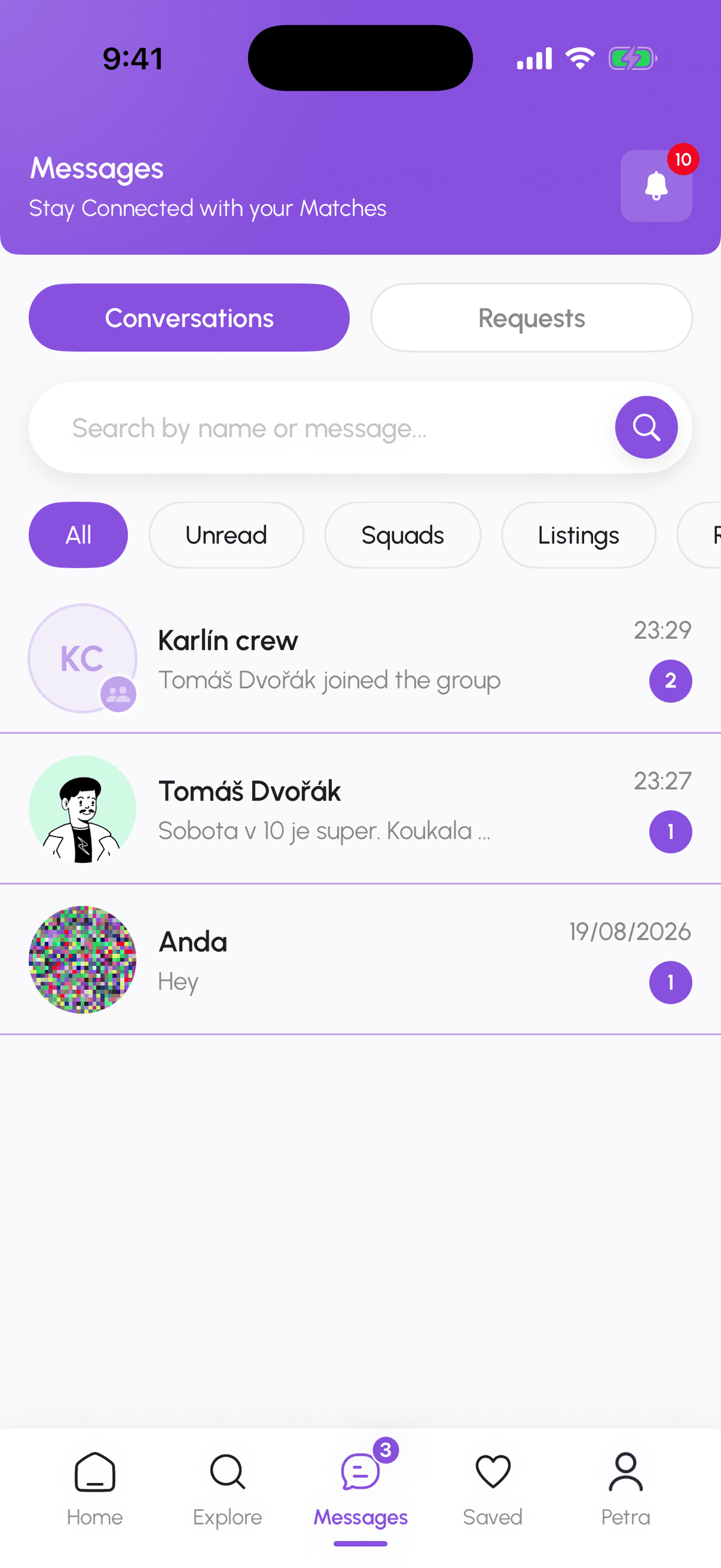
Conversations is everything you can reply to: roommate chats, squad group chats, and property chats with hosts. Requests holds incoming connection requests that you have not answered yet, each with Accept Connection and Decline Connection.
Filter chips
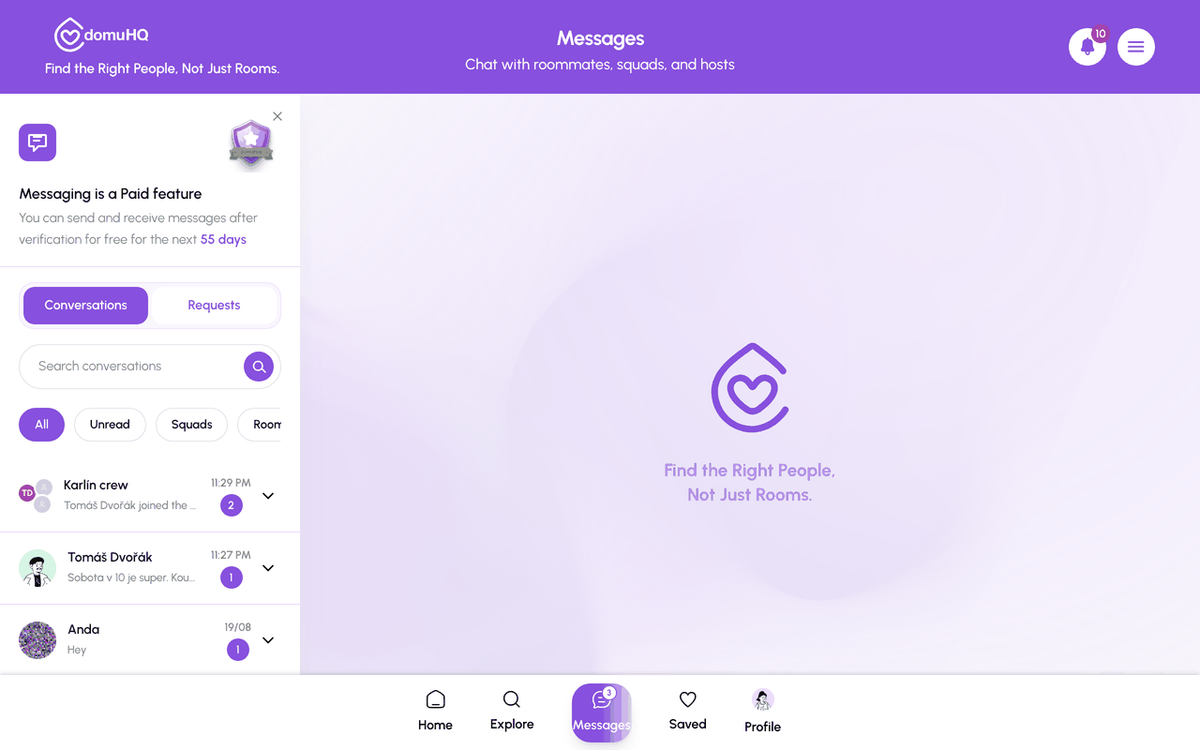
Above the list: All, Unread, Squads (group chats), Roommates (one-to-one), Listings (chats tied to a property), Archived. Search by name or message text with the search box.
Inside a conversation
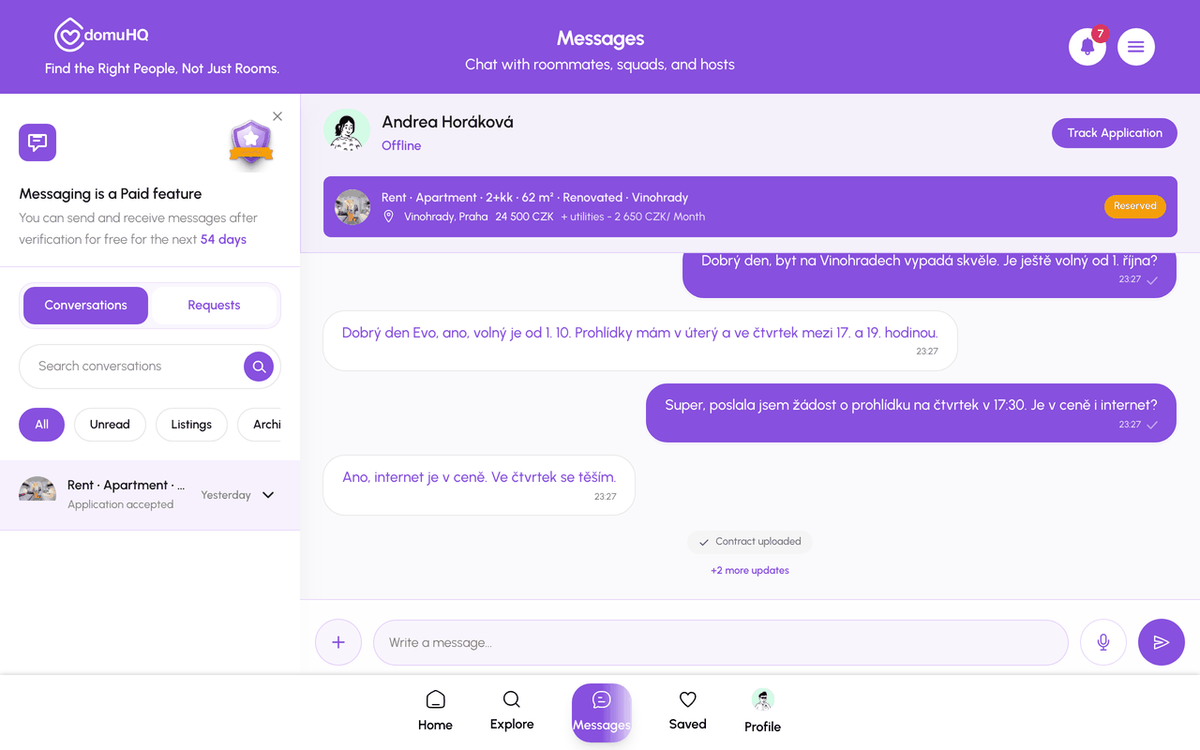
Send text, photos, documents, and voice notes. Messages from the other person can be translated into your app language; see Real-time message translation. A property chat shows the listing pinned in the header with its photo, title, price, and status badge (Available, Reserved, or Rented), plus the action for the current stage:
- Schedule a Viewing: book a slot from the host's availability.
- Apply for Apartment (or Apply for Room): send your application with one tap; the button then reads Application Pending.
- Track Application: after the host accepts, opens the step-by-step pipeline.
Each stage posts a card in the property chat: application sent, viewing confirmed, contract sent, payment confirmed, and so on. When a newer card replaces an older one, the older card is greyed out and no longer tappable, so you always act on the latest one.
On the web the plus button next to the composer holds Translate, Camera, Attach (any file, with a confirmation before it sends), and Media (photos, audio, video). On iPhone the same options sit next to the text field.
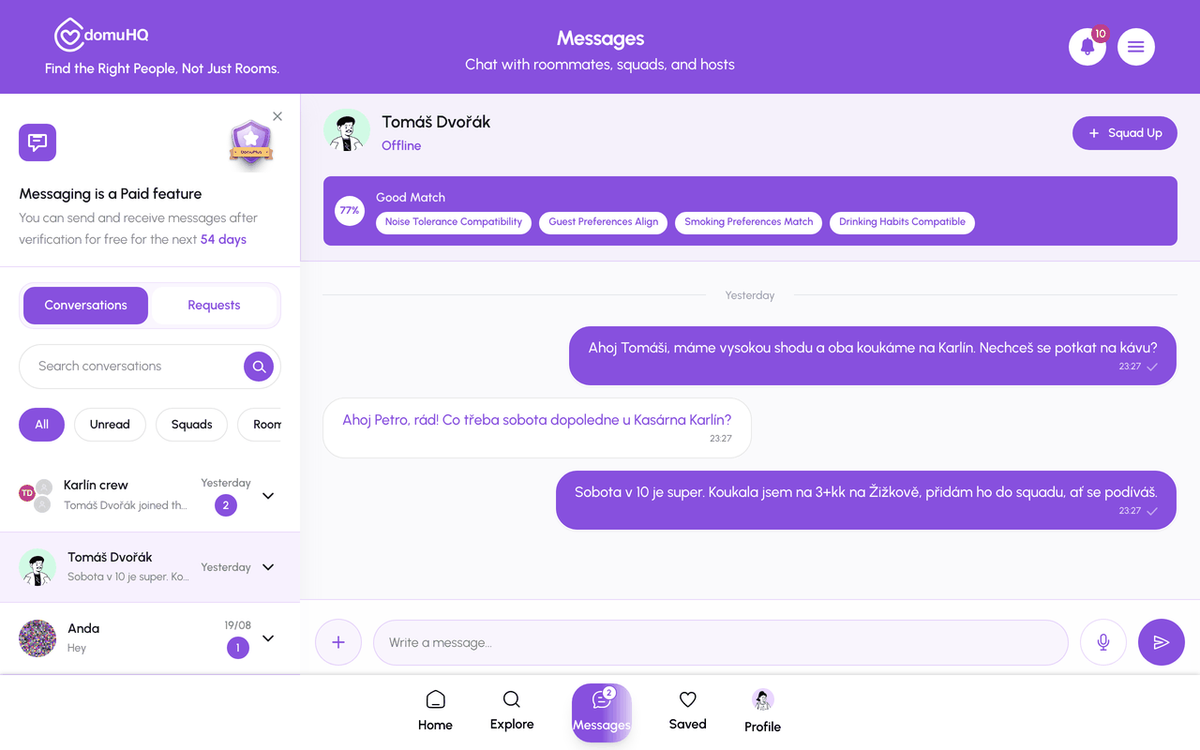
Squad Up
In a chat with a roommate match the header has Squad Up. It opens a sheet with two choices: Create a New Squad with this person, which starts the squad wizard and invites them when you finish, or Invite to Existing Squad, which lists the squads where you are an admin; pick one and tap Send squad invite. They get the invite under Messages, Requests and in Notifications. Squad Up is a DomuPlus feature.
Conversation menu
Open the menu on a conversation (three dots, or long-press in the list): Archive Chat (moves it to the Archived filter; Unarchive brings it back), Pin Chat, Mute Notification, Mark as Read or Mark as Unread, Unmatch, Block User, Report, Clear Chat, and Delete Chat. Blocking stops all contact and hides you from each other; Report goes to the trust and safety team.
The DomuHQ thread
A conversation named DomuHQ (Official announcements) carries product news, maintenance notices, and alerts. Only DomuHQ can write there. You can pin, mute, or delete it like any other thread.
Who can message
Messaging is a DomuPlus feature and needs a verified identity; every plan is free until 2027. Before you chat with someone who is not verified, the app shows a Complete Verification nudge with Verify Now and Proceed Anyway.
Step-by-step
- 1
Open Messages
5 secondsTap the Messages tab. Conversations is selected; tap Requests for pending connection requests.
- 2
Filter the list
5 secondsTap a chip: All, Unread, Squads, Roommates, Listings, or Archived.
- 3
Use the property chat actions
variesIn a listing chat, the header buttons follow the stage: Schedule a Viewing and Apply for Apartment before applying, Application Pending after, Track Application once accepted.
- 4
Manage a conversation
10 secondsOpen the conversation menu to Archive, Pin, Mute, Mark as read, Unmatch, Block User, Report, Clear, or Delete.
- 5
Squad Up from a chat
In a roommate chat tap Squad Up in the header, then create a new squad with this person or invite them to one you admin.

- 6
Read announcements
1 minuteOpen the DomuHQ thread for official news. It is read-only.

Frequently asked questions
Where are my connection requests?
Messages, Requests tab. Accepted requests move to Conversations.
Can I send voice messages?
Yes, hold the microphone button in the composer. Photos and documents go through the attachment button.
The other person cannot see my messages.
Check that neither of you has blocked the other and that the conversation is not archived on their side. If a host stopped replying, use Report or write to support@domuhq.cz.
Related articles
Real-time message translation between Czech and English
Turn on Auto-translate Messages and incoming Czech (or English) messages appear in your app language, with the original one tap away.
BeginnerStay safe on DomuHQ: scams, reporting, and blocking
Never pay before you have seen the place and met the host, keep the conversation on DomuHQ, and use Report and Block the moment something feels off.
BeginnerTrack your application from accepted to move-in
After a host accepts you, Track Application shows every step from lease to move-in, with a button when it is your turn. Here is the exact pipeline for each listing type.
Intermediate