
Track your application from accepted to move-in
After a host accepts you, Track Application shows every step from lease to move-in, with a button when it is your turn. Here is the exact pipeline for each listing type.
Where it is
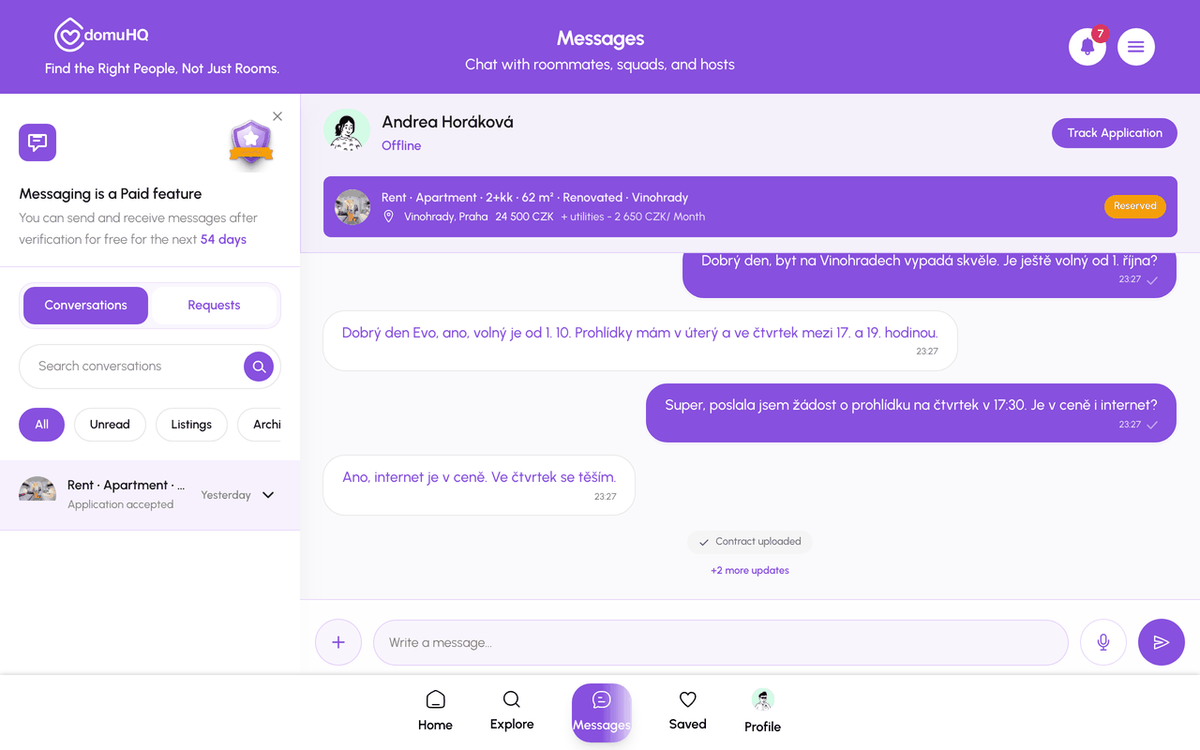
Once the host accepts, the chat header button changes from Application Pending to Track Application. You can also reach it from Explore, Properties, Applications & Viewings. Chat stays for conversation; the Track Application page is where the documents and confirmations live.
The standard pipeline (rental with a written lease)
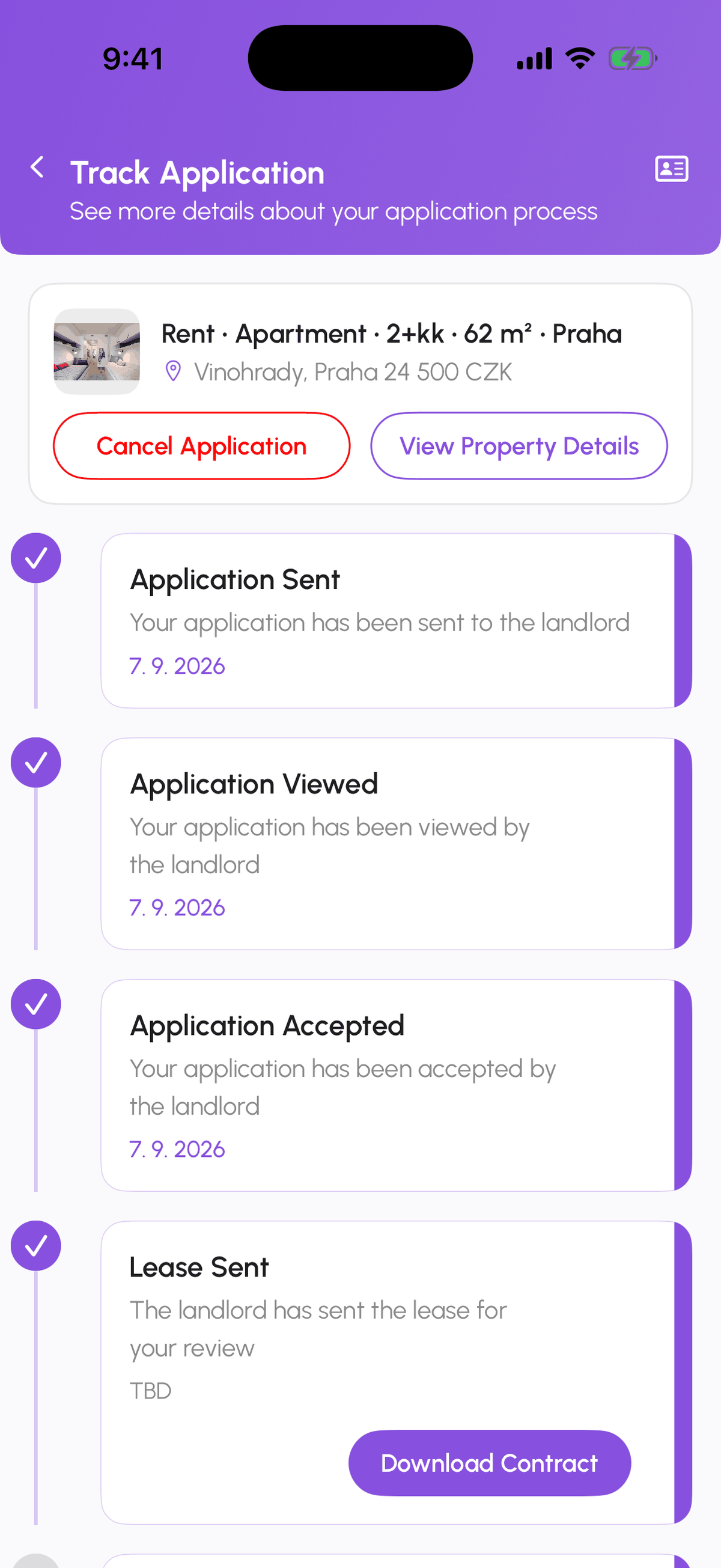
- Application Sent: you applied.
- Application Viewed: the host opened it.
- Application Accepted: the formal phase starts.
- Lease Received: the host uploaded and sent the lease to you.
- Lease Viewed: you opened it.
- Lease Signed: every party has signed (electronically or by uploading the signed PDF).
- Payment Made: you paid the deposit and first rent and uploaded the evidence.
- Payment Confirmed: the host confirmed the money arrived.
- Move-In Approved: the keys are yours; the listing becomes Rented.
The host sees the same steps from their side, worded for them (Lease uploaded, Lease sent, and so on).
With a reservation contract
Some hosts reserve the unit with a reservation contract and fee before the lease. The page then shows a reservation phase first: Reservation Received, Reservation Viewed, Reservation Signed, Reservation Payment Made, Reservation Payment Confirmed. The lease steps follow.
Spare rooms
A room in a shared flat with a written sublease shows Sublease Agreement Received, Sublease Agreement Viewed, and Sublease Agreement Signed instead of the lease steps. A room with a verbal agreement has no contract steps at all: Application Sent, Viewed, Accepted, Payment Made, Payment Confirmed, Move-In Approved.
Who does what
- You: view and sign the lease (or upload the signed PDF), upload payment evidence, confirm move-in.
- The host: upload and send the lease, confirm payment, approve move-in.
- The button on the current step belongs to whoever owes the next action; the other side sees the status only.
Signing
Hosts on a professional plan can send the lease for electronic signing through DigiSign (BankID or SMS code). Otherwise you sign in the app, or download the lease, sign it, and upload the signed PDF. Details in Sign your rental contract.
Payment evidence
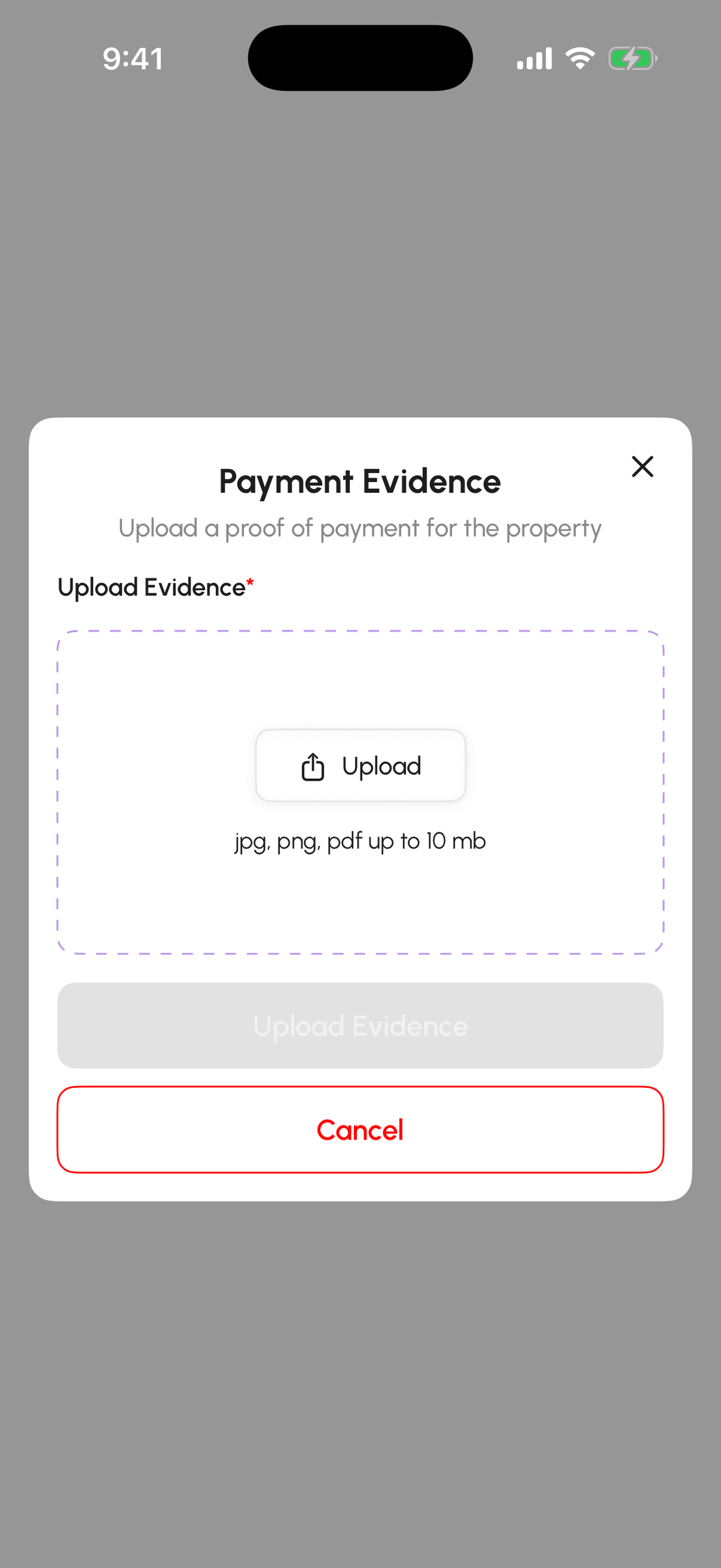
At Payment Made tap Upload Evidence and attach a bank confirmation or statement screenshot (JPG, PNG, or PDF up to 10 MB) showing date, amount, and recipient. The host confirms on their side.
Squads
A Squad application shows a per-member counter on the steps each person must do (for example Lease Signed 2/3); see Apply as a Squad and track the application.
If it stalls
Nudge the host in the chat first. If a host disappears mid-pipeline for more than a few days, write to support@domuhq.cz with the listing name and we will look into it.
Step-by-step
- 1
Open Track Application
5 secondsFrom the listing chat header, or Explore, Properties, Applications & Viewings.

- 2
Read the timeline
30 secondsCompleted steps have a check and a date. The current step shows what is owed and by whom.
- 3
Act when it is your turn
variesView and sign the contract, or upload the signed PDF; upload payment evidence; confirm move-in.
- 4
Watch the chat
ongoingEvery step change posts a card in the listing conversation, so you notice even when you are not on the page.
Frequently asked questions
Can I sign offline and upload the PDF?
Yes. Download the lease, sign, scan, and upload it at the Lease Signed step. The pipeline continues normally.
What counts as payment evidence?
A bank confirmation or statement screenshot with the date, amount, and recipient. Cash needs a signed receipt from the host, photographed.
The host has not confirmed my payment.
Send them a message; they confirm from their side of the same page. If nothing happens for several days, contact support@domuhq.cz.
What to do next
Related articles
Apply as a Squad and track the application
A Squad applies to one listing as a team after a property vote. The host sees every member; the tracker shows per-member progress for signing and payment.
IntermediateRenting in the Czech Republic: what expats should know
The Czech rental market has its own rules: deposit caps, lease formats, layout codes, and which documents matter for residency. A practical primer.
Beginner