
Save listings into collections and compare them side by side
The heart saves a listing; Saved keeps them in collections you name; Compare shows up to four listings in one table.
Saving
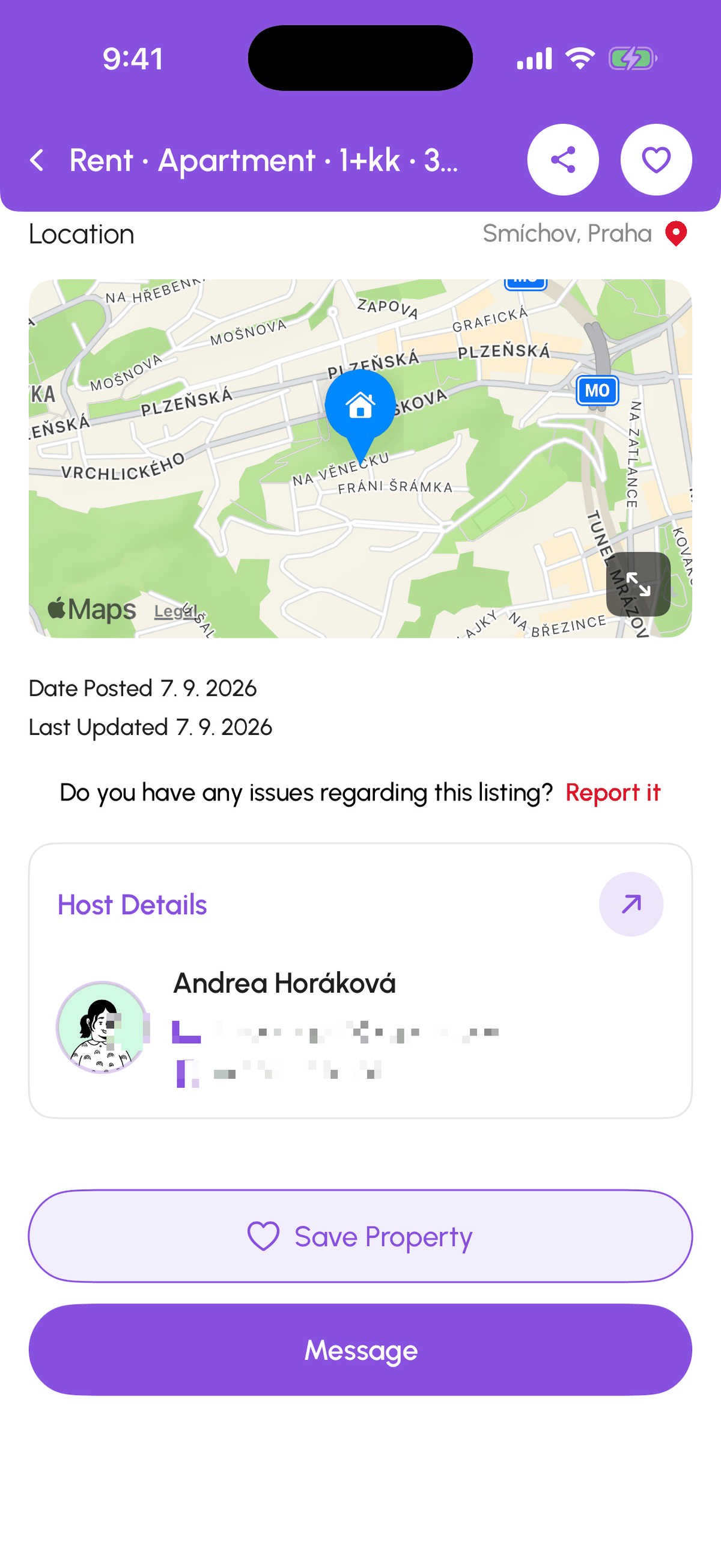
Tap the heart on a card or Save Property on the property page. The first time, the app asks which collection to use; create one with Add Category (for example "Karlín shortlist" or "Viewing Saturday"). Tap the heart again to remove.
The Saved tab
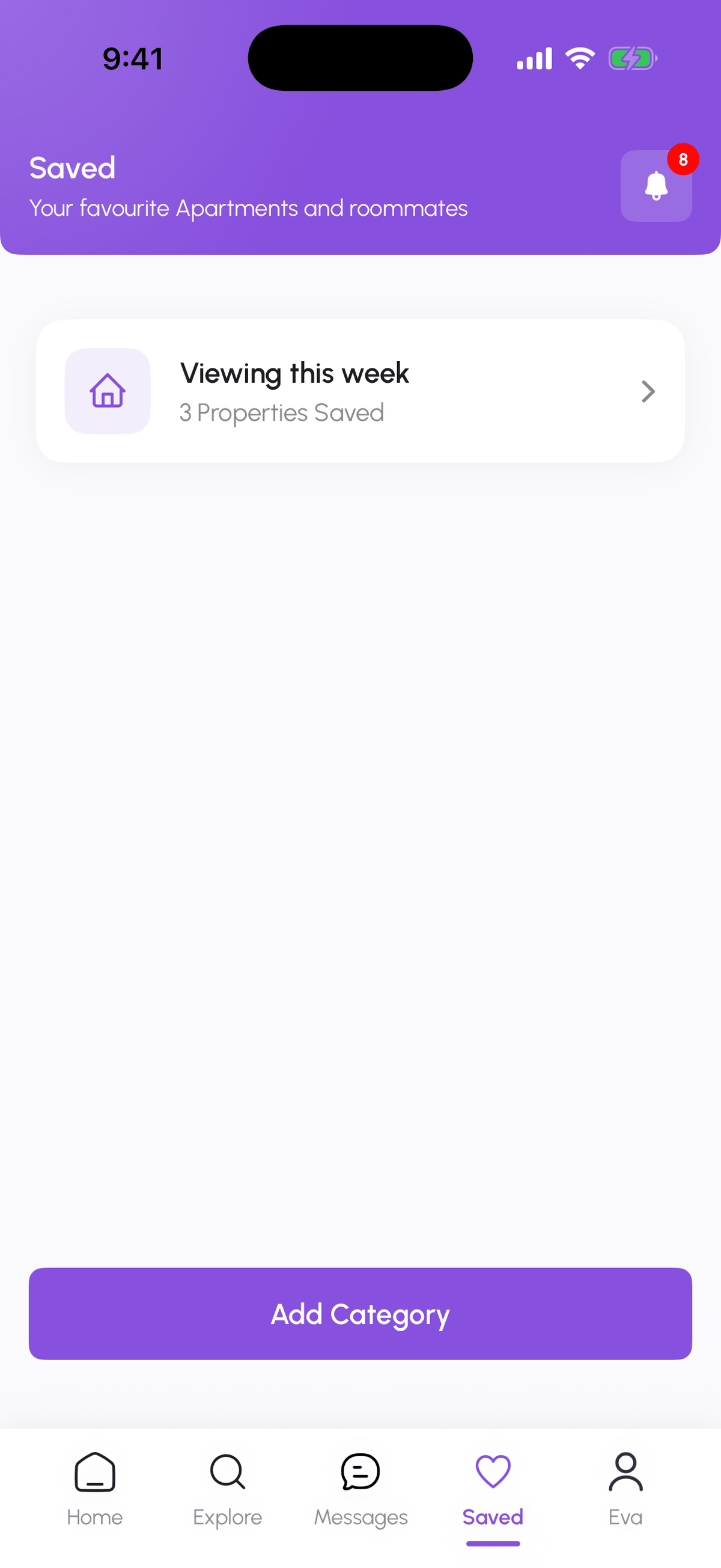
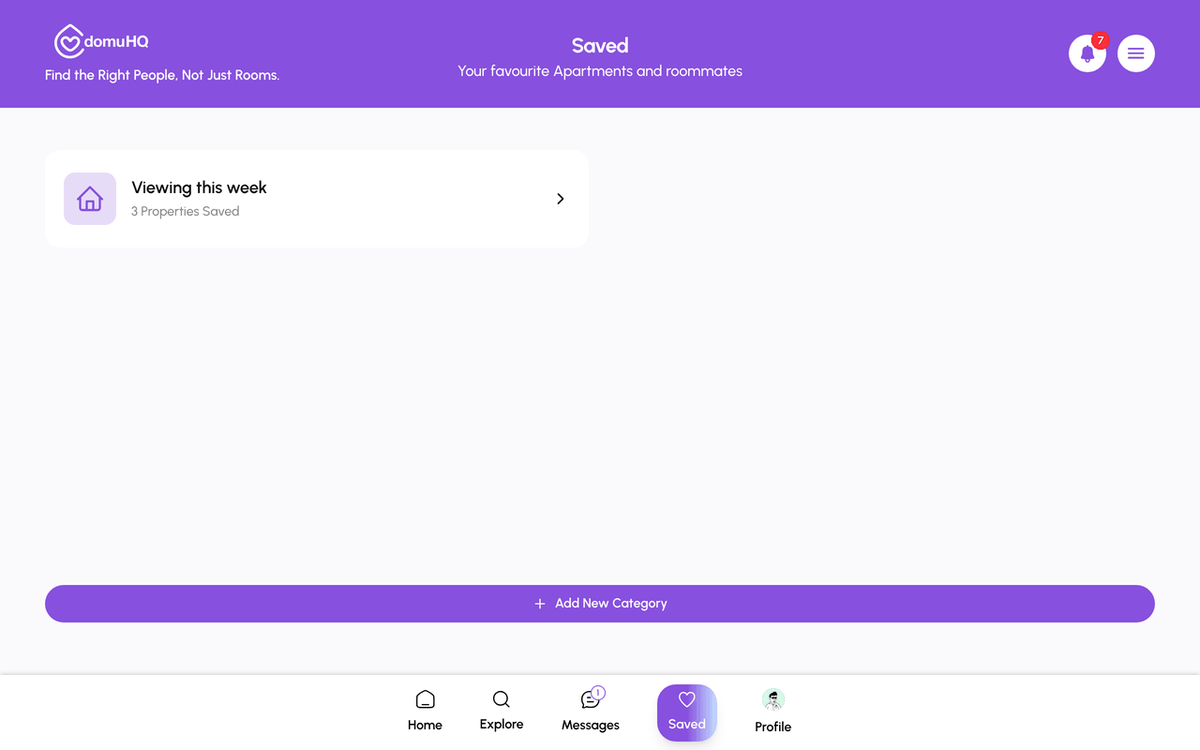
Saved Properties and Saved Roommates are separate tabs. Each shows your collections; open one to see its items, and use the collection menu to rename or delete it. Deleting a collection does not delete the listing, just your bookmark.
Comparing
Tap the compare icon on two or more cards, then open the Compare page (Apartment Comparison). Rows: monthly rent, deposit, utilities, size, rooms, floor, furnishing, pets, and the amenities, so you can spot the one with a dishwasher without opening four pages. DomuPlus compares 2 listings, DomuPro 4.
Tip for Squads
Compare is personal, but you can suggest any saved listing to your Squad (Suggest New Apartment) and let everyone vote.
Step-by-step
- 1
Save a listing
5 secondsTap the heart on a card or Save Property on the property page, and pick or create a collection.
- 2
Open Saved
10 secondsTap the Saved tab. Switch between Saved Properties and Saved Roommates; tap Add Category to create a collection.
- 3
Compare
1 minuteTap the compare icon on the cards you want, then open Compare to see the side-by-side table.
Frequently asked questions
Is there a limit on saved listings?
No. Collections and their contents are unlimited.
Why can I only compare two listings?
DomuPlus compares 2, DomuPro compares 4. Both are free until 2027; switch in Manage Subscription.
Does the host know I saved their listing?
No. Saving is private.
Related articles
Search listings and read a property page
Where listings live, how the filters work, what a listing card and property page tell you, and what Contact and Details do.
BeginnerJoin a Squad, vote, and suggest apartments
Browse squads in Explore, Join or Request to Join, answer the application questions, then use the squad page to chat, suggest apartments, and vote.
Beginner