
Join a Squad, vote, and suggest apartments
Browse squads in Explore, Join or Request to Join, answer the application questions, then use the squad page to chat, suggest apartments, and vote.
Finding squads
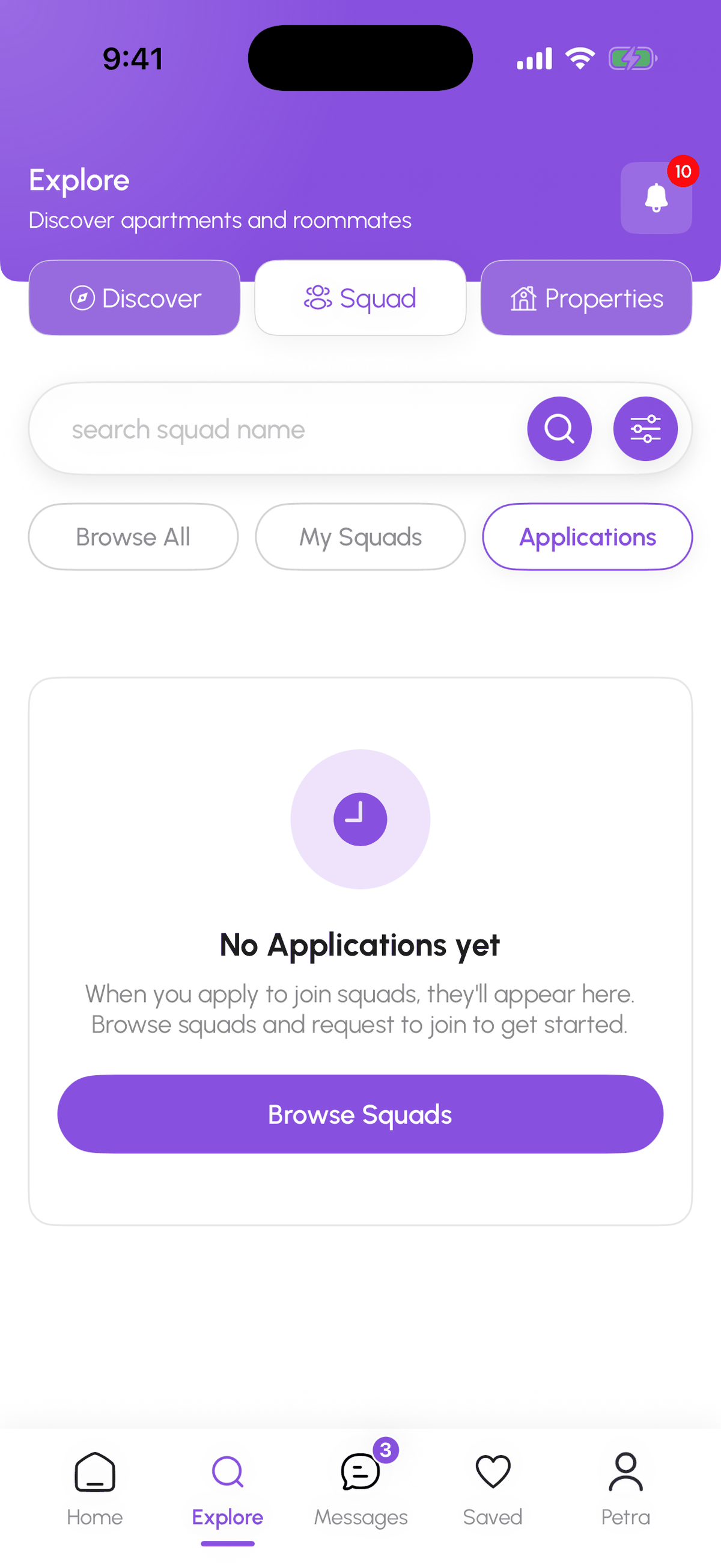
Explore, then Squad. Browse All lists public squads; search by name or use Filters. Each card shows the type (Open Squad or Semi-Open Squad), the members so far (for example 4/8 members), the name, description, budget, move-in timeframe, location, and tags. My Squads shows the ones you are in; Applications shows join requests you have sent and their status.
Joining
- Open Squad: tap Join. You are in immediately.
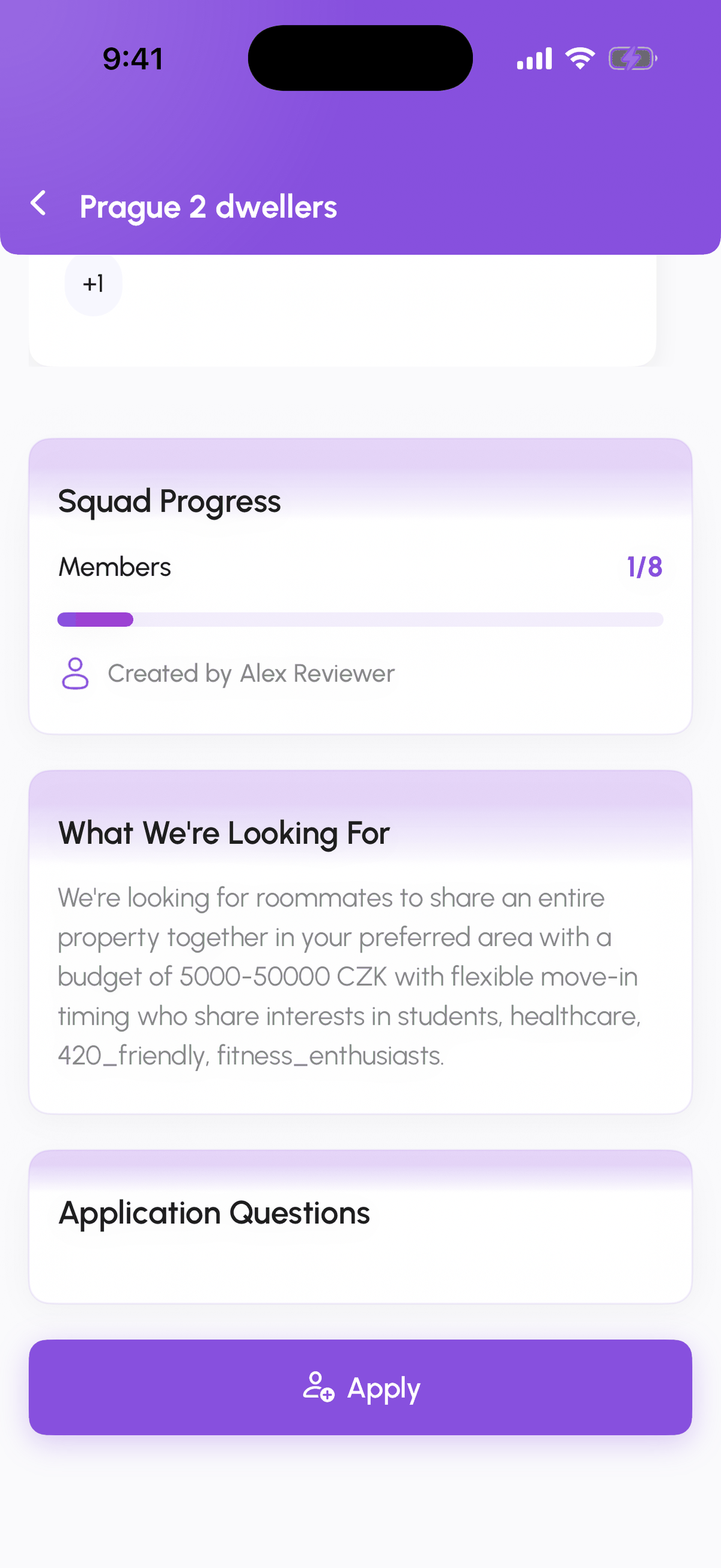
- Semi-Open Squad: tap Request to Join or open View Details and tap Apply. Answer the squad's Application Questions and submit. Existing members review it; you get a notification when they approve or reject. Until then it sits under Applications.
- Private Squad: you cannot find it in Explore. You need an invitation from the admin, which arrives as a Squad Invitation notification with Accept and Decline.
The squad page
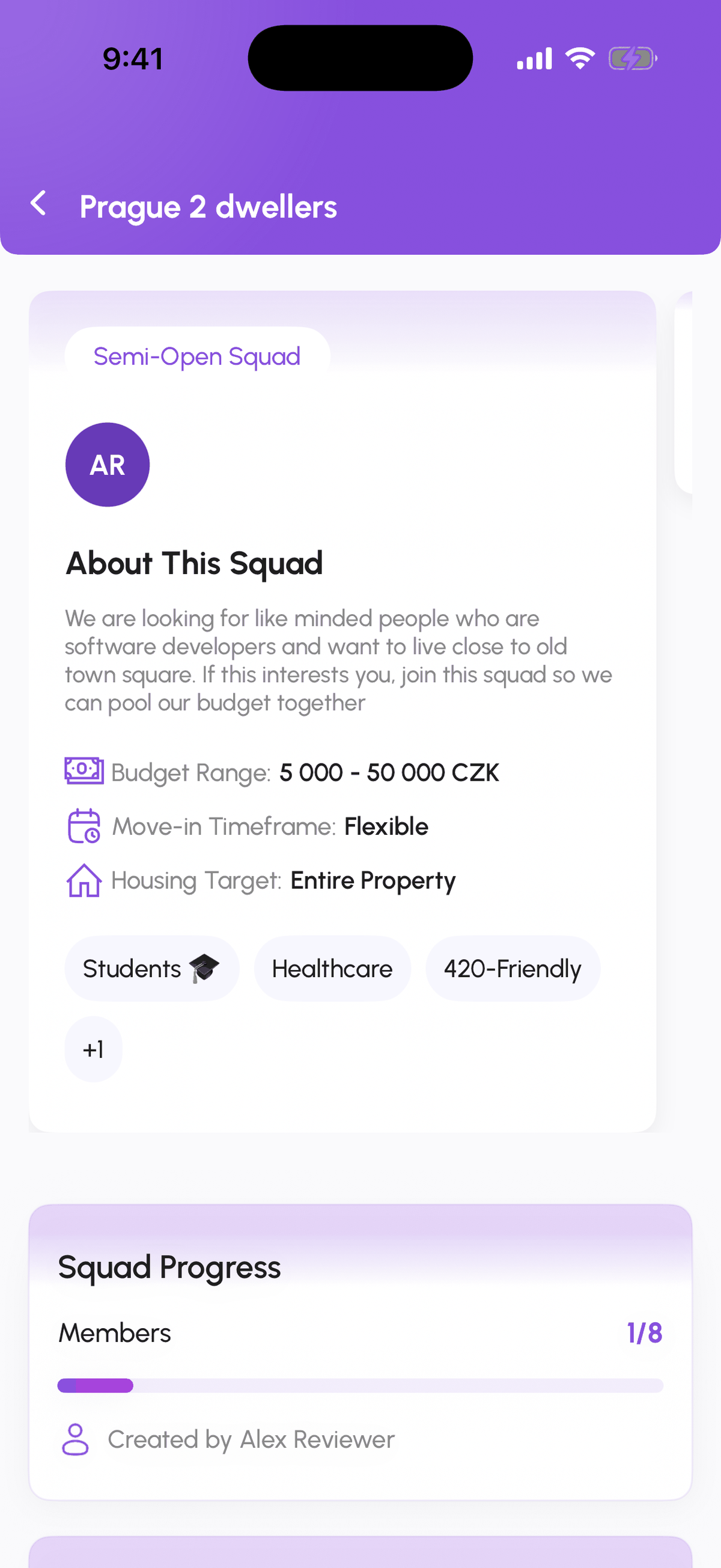
Tabs: Overview (description, budget range, move-in timeframe, housing target, tags, Squad Progress), Members (everyone with their role and a group compatibility summary), Application (pending join requests, admins can Approve or Reject), Properties (apartments members suggested), Decisions (open votes), and Preferences (the squad's housing criteria).
Suggesting an apartment
From the Properties tab tap Suggest New Apartment, choose a listing (from Explore or your Saved properties), add a note, and set a voting deadline. Every member gets a notification and a vote opens under Decisions.
Voting
Under Decisions tap Vote Yes or Vote No on each open decision. The result shows when the deadline passes or everyone has voted. The admin can use Override Vote for a decision that is stuck. Property votes decide which listing the squad applies to; see Apply as a Squad and track the application.
Squad chat
Every squad has a group conversation in Messages (filter chip Squads). Status cards for suggestions, votes, and application steps are posted there automatically, so the chat is also the squad's log.
Leaving
Squad Settings, Danger Zone, Leave Squad. Your other squads and your matches are not affected.
Step-by-step
- 1
Browse public squads
2 minutesExplore, Squad, Browse All. Read the description, budget, timeframe, and tags on each card.

- 2
Open the details
1 minuteTap View Details to see About This Squad, Squad Progress, What We're Looking For, and the Application Questions.
- 3
Join or apply
2 minutesTap Join (Open Squad) or Apply / Request to Join (Semi-Open) and answer the questions.
- 4
Track your request
ongoingExplore, Squad, Applications lists your pending requests. You get a notification when the squad decides.
- 5
Suggest and vote
2 minutesInside the squad: Properties, Suggest New Apartment to propose a listing; Decisions to vote on open proposals.
Frequently asked questions
Can I see who else is in a squad before joining?
Yes. Members and their roles are visible on the squad page, along with the group compatibility summary.
Can I apply to several squads at once?
Yes. Each request is tracked separately under Applications.
The Join button is missing.
The squad is Semi-Open (you see Request to Join instead) or Private (invitation only). Squads also need DomuPlus, which is free until 2027.
What to do next
Related articles
Create a Squad
A Squad is a group of 2 to 8 people who look for housing together. Pick Private, Open, or Semi-Open, set the budget and move-in window, add tags and application questions, and invite people from your matches.
BeginnerSave listings into collections and compare them side by side
The heart saves a listing; Saved keeps them in collections you name; Compare shows up to four listings in one table.
BeginnerSquad roles, settings, and payment split
How a Squad Admin promotes or demotes members, removes people, edits Squad Settings, and records how the rent is split between members (even or weighted).
Beginner