
Create a Squad
A Squad is a group of 2 to 8 people who look for housing together. Pick Private, Open, or Semi-Open, set the budget and move-in window, add tags and application questions, and invite people from your matches.
What a Squad is
A Squad is a group of 2 to 8 people, formed in the Roommate role, who want to rent a place together. Inside the Squad you chat as a group, suggest apartments, vote on them, and apply to a listing as one team. Hosts see one application with every member's profile, not five separate strangers.
Three squad types
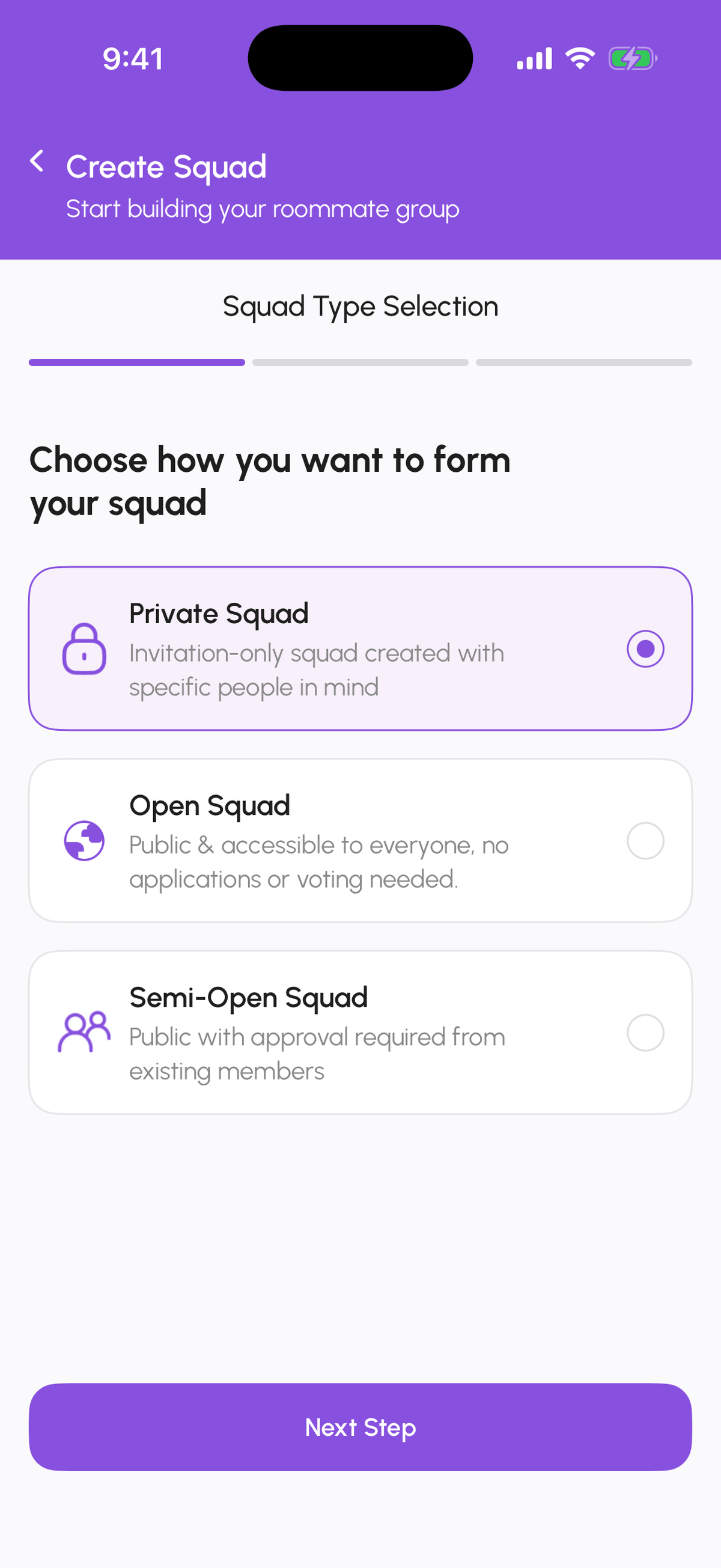
- Private Squad: invitation only. It does not appear in Explore. Use it when you already know who you want to live with.
- Open Squad: public and open to everyone. Anyone can tap Join in Explore, no approval needed.
- Semi-Open Squad: public, but joining requires approval. People tap Request to Join, answer your application questions, and existing members decide.
The three-step wizard
From Explore, Squad, tap Create Squad (the plus button). Step 1 is Squad Type Selection. Step 2 is configuration: what you are looking for (a whole property or rooms), budget per person in CZK, move-in timeframe, and preferred locations. Step 3 is setup: the squad name, a description, up to 8 tags from the list (Professional, Students, Creative, Tech, Healthcare, Finance, Clean Living, Social, Quiet, Pet Friendly, Fitness, Cooking), and the questions applicants must answer.
Application questions and templates
Questions are how you filter people who want to join a Semi-Open or Open squad. Write your own or reuse a saved set: Manage Templates (from the create flow, or Profile, Saved Templates) keeps your question sets with stats on how often they were used and how many applicants passed.
Inviting people
Open your squad and go to Potential Roommates: it lists your matches with their compatibility to the squad, and each card has Invite to Squad. The person gets a Squad Invitation notification and can accept or decline. You can also share the squad link from the squad page.
Roles
The creator is the Squad Admin: approves or rejects join requests, removes members, edits Squad Settings, can override votes, and can delete the squad. Members can suggest apartments, vote, chat, and leave at any time.
To promote or demote someone, remove a member, or record the payment split, see Squad roles, settings, and payment split.
Squad Settings
Squad Settings (from the squad page) lets the admin change the name, description, and type, the move-in timeframe and budget, the application questions, and notification toggles for squad activity. The Danger Zone at the bottom has Leave Squad (members) and Delete Squad (admin).
Step-by-step
- 1
Go to Explore, Squad
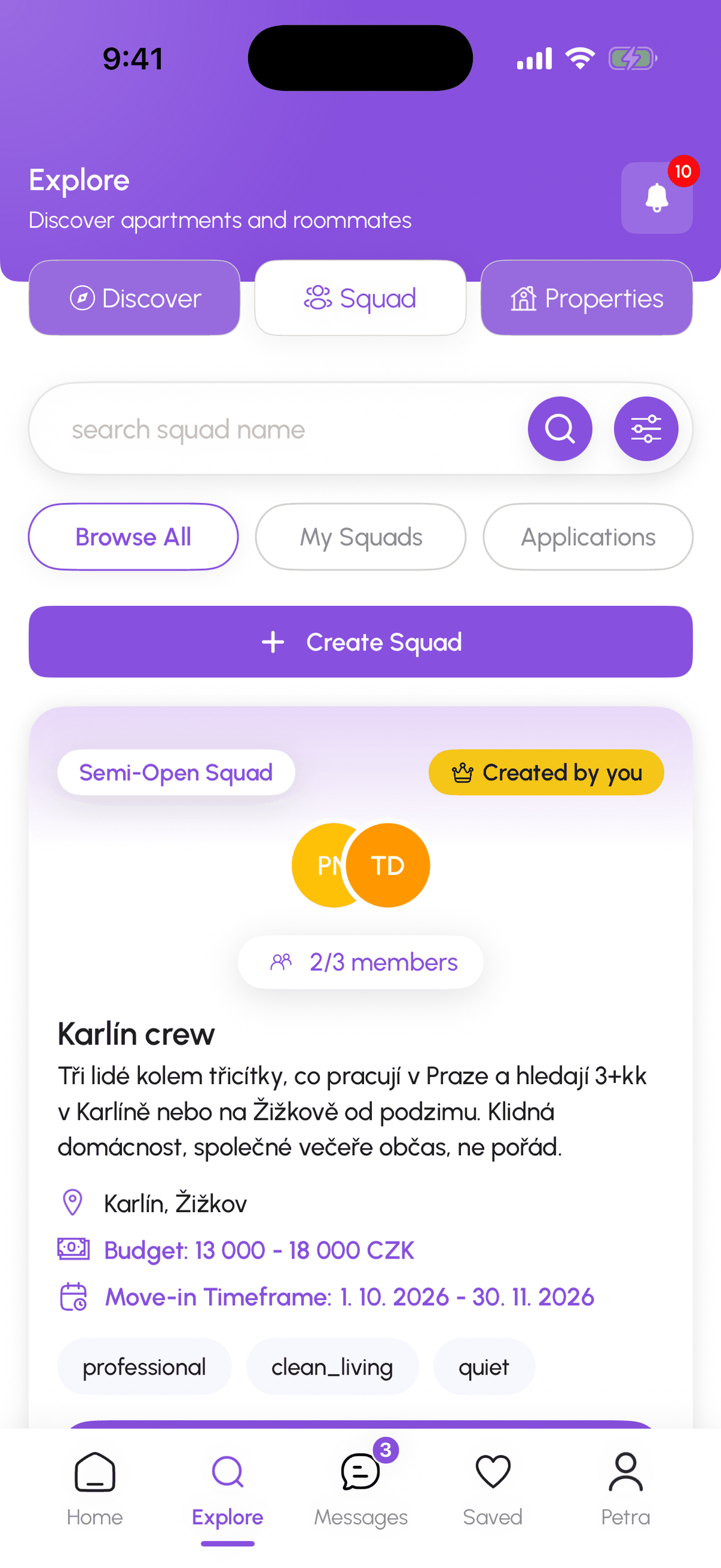
5 secondsTap Explore, then the Squad tab. You see Browse All, My Squads, and Applications, and the Create Squad button.
- 2
Choose the squad type
10 secondsTap Create Squad and pick Private Squad, Open Squad, or Semi-Open Squad. Tap Next Step.
- 3
Set the configuration
1 minuteHousing target, budget per person, move-in timeframe, preferred locations. These are shown on your squad card and pre-fill applications later.
- 4
Name it, describe it, tag it
2 minutesGive the squad a name and a short description, pick up to 8 tags, and add application questions (or a saved template).
- 5
Invite members
2 minutesOpen the squad, go to Potential Roommates, and tap Invite to Squad on the people you want. Watch Members x/8 fill up on the squad page.

Frequently asked questions
How many people can be in a Squad?
Between 2 and 8. The squad page shows Members x/8.
Can I be in more than one Squad?
Yes. Your Squad screen separates Squads you Created and Squads you Joined.
Do I need a paid plan?
Creating and joining Squads is a DomuPlus feature. Every plan is free until 2027, so switch to DomuPlus from Manage Subscription at no cost.
What happens if the admin leaves?
The admin can promote another member to admin in the Members list before leaving. Deleting the squad removes it for everyone.
What to do next
- Join a Squad, vote, and suggest apartmentsBrowse squads in Explore, Join or Request to Join, answer the application questions, then use the squad page to chat, suggest apartments, and vote.
- Squad roles, settings, and payment splitHow a Squad Admin promotes or demotes members, removes people, edits Squad Settings, and records how the rent is split between members (even or weighted).
- Apply as a Squad and track the applicationA Squad applies to one listing as a team after a property vote. The host sees every member; the tracker shows per-member progress for signing and payment.
Related articles
The compatibility assessment: how match scores work
20 questions drawn from a bank of 110, based on the Big Five personality model, plus your lifestyle answers. Together they produce the match percentage you see on every roommate card.
BeginnerMessages: conversations, requests, and chat actions
How the Messages tab is organised, what the filter chips mean, what the property chat header can do, and how to archive, pin, mute, block, or report a conversation.
Beginner