
Squad roles, settings, and payment split
How a Squad Admin promotes or demotes members, removes people, edits Squad Settings, and records how the rent is split between members (even or weighted).
Roles
Every squad has at least one Admin and any number of Members. Admins approve or reject join requests, invite people, edit Squad Settings, override votes, submit the squad's application, and can delete the squad. Members suggest apartments, vote, chat, and can leave at any time.
You can have more than one Admin. Sharing the role helps when the creator is travelling or busy during the application window.
Changing a role
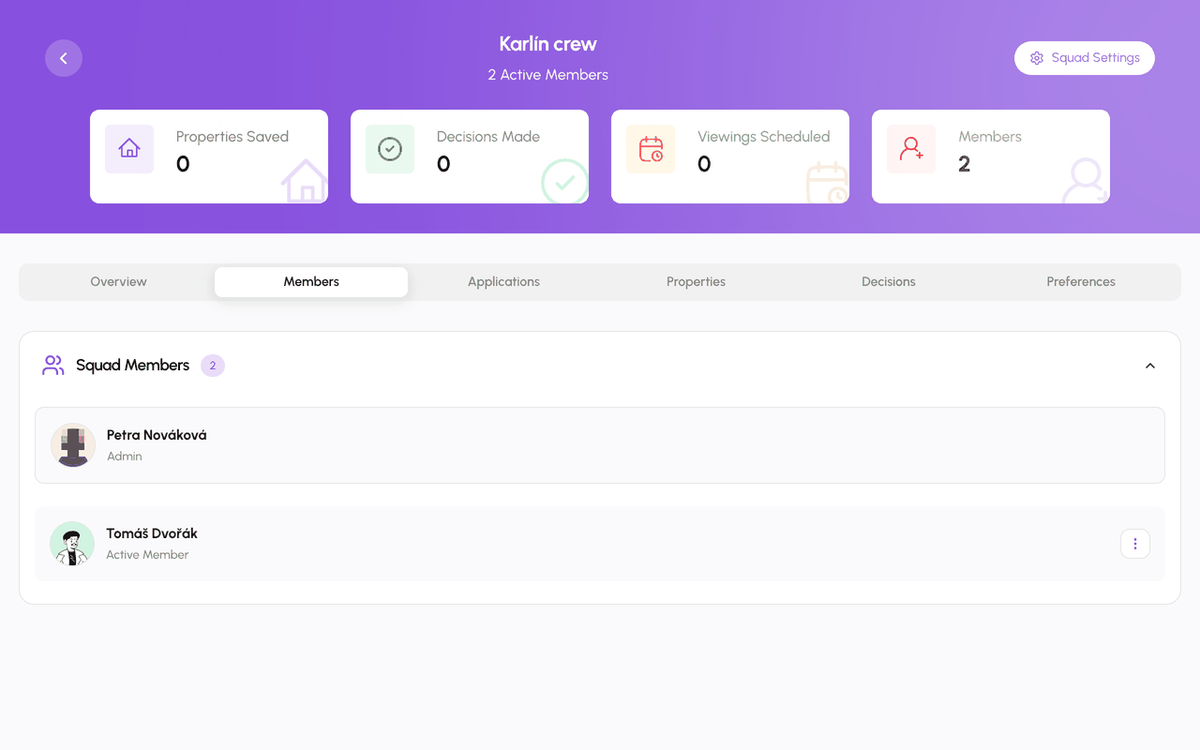
Open the squad page, Members tab, and tap the three-dot menu on a member. Change Role opens a confirmation: Promote to Admin gives that person the same controls as you; Demote to Member takes them away again. The change applies immediately and the squad chat receives a note.
Removing a member
Same menu, Remove from Squad. The person loses access to the squad page, chat, and decisions right away. They are not blocked: you can invite them again later, and they can apply to join again if the squad is Open or Semi-Open.
Squad Settings
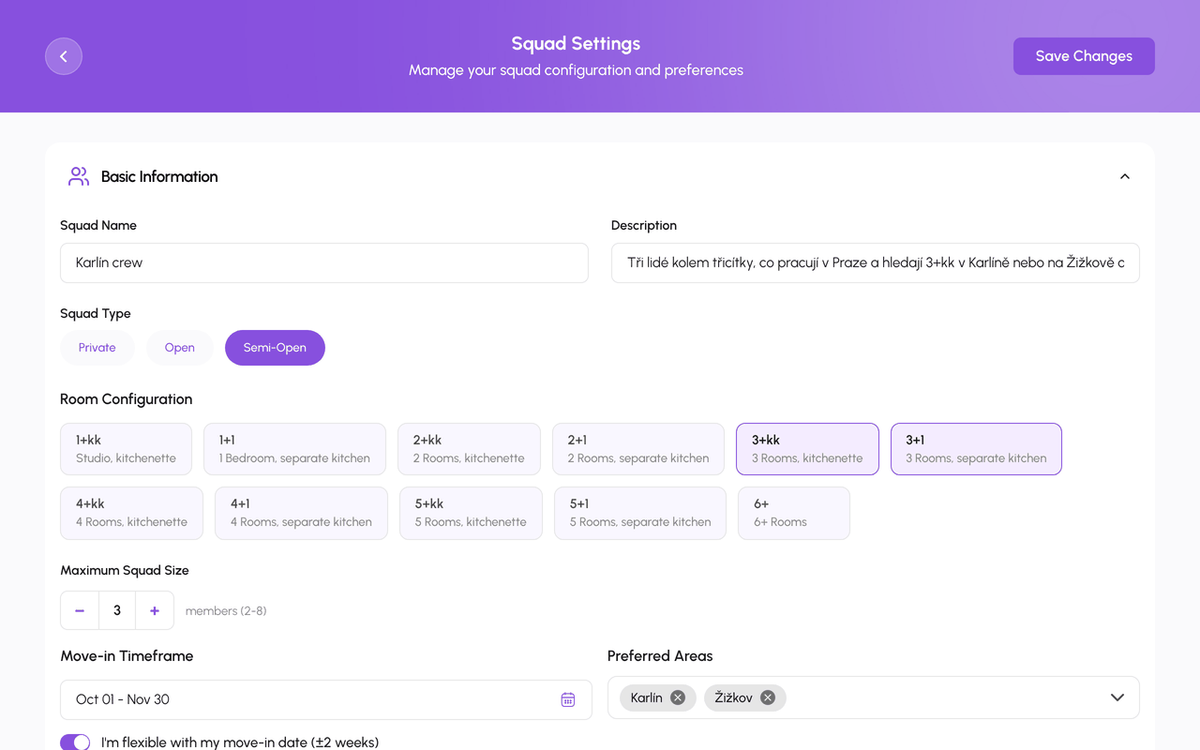
From the squad page open Squad Settings (admins only). You can change:
- Name and description.
- Squad type: Private, Open, or Semi-Open. Switching to Private hides the squad from Explore.
- Maximum members, 2 to 8. You cannot go below the current member count.
- Move-in timeframe as a date range, or the Flexible move-in switch.
- Preferred areas and budget range, which feed the shared preferences everyone sees.
- Tags and interests, up to 8.
- Prompts: the preset questions about cleanliness, guests, expenses, sleep, and disagreements that new members answer.
- Application questions: your own questions for people who want to join, with optional answer choices.
Tap Save changes at the bottom. The Danger Zone below it has Leave Squad for members and Delete Squad for admins; both ask for confirmation.
Payment split
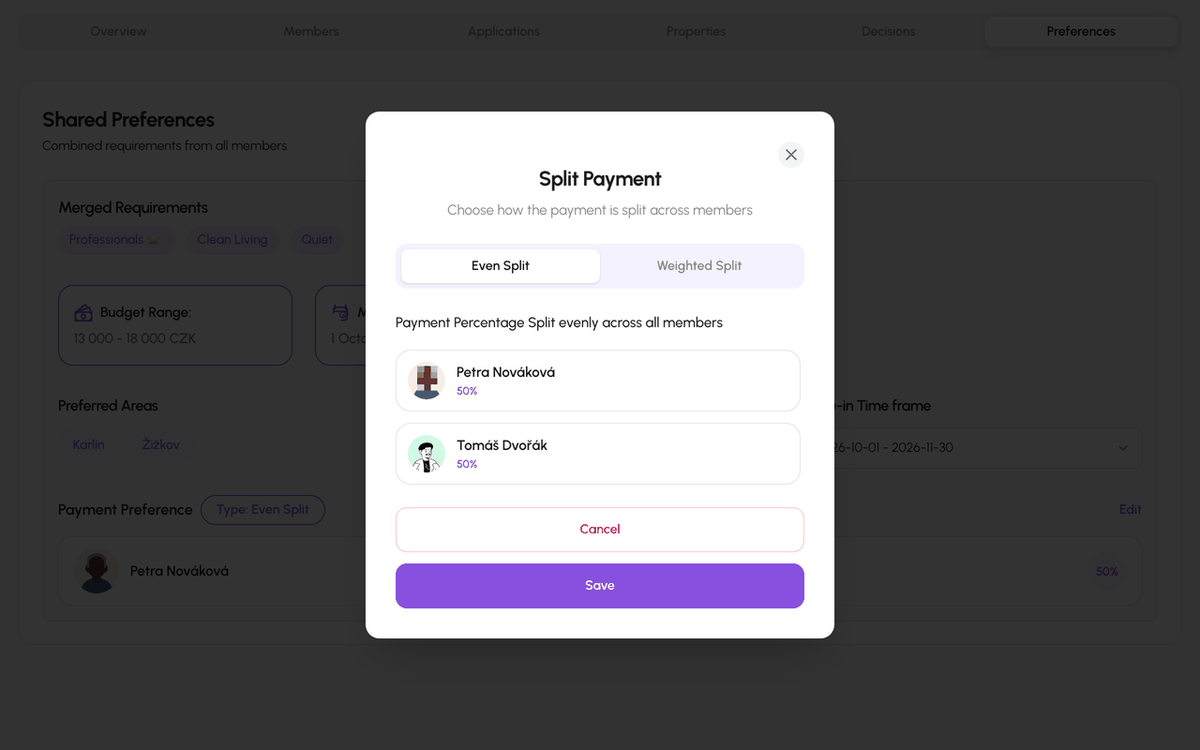
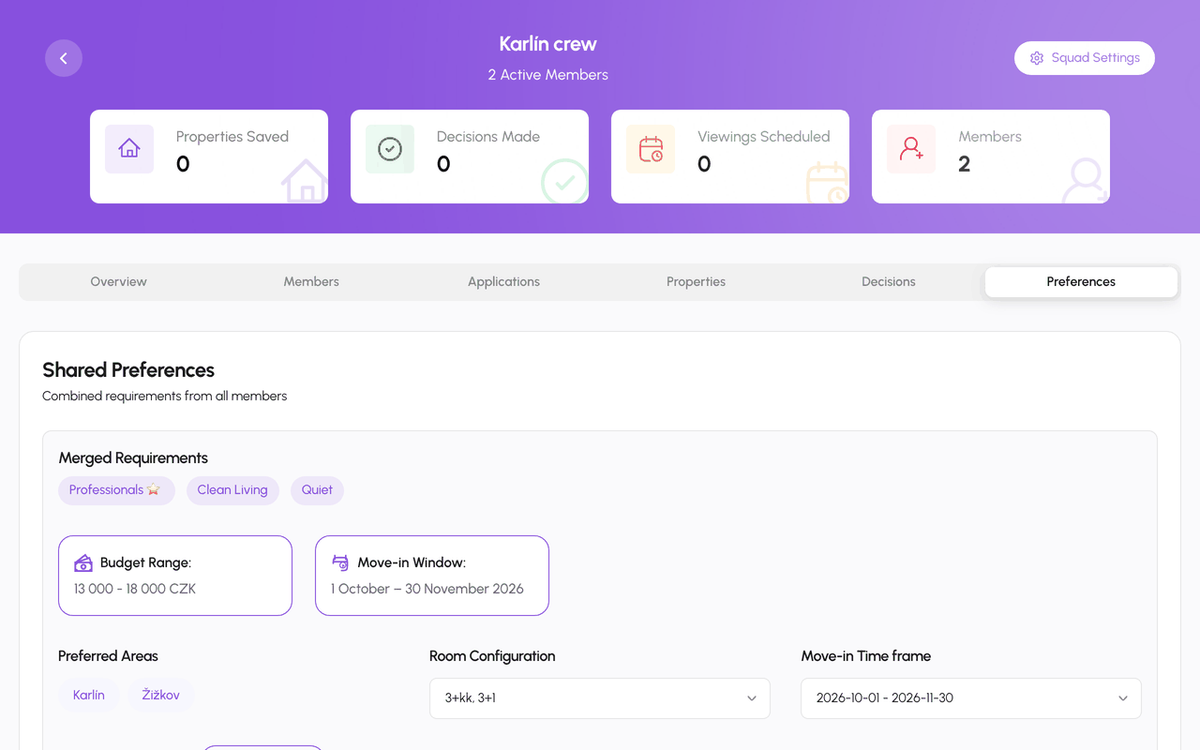
The Preferences tab merges what every member entered (budget, move-in window, areas, housing target) and shows the squad's Payment preference. The admin taps Edit to open Split Payment and picks one of two options:
- Even Split: the rent and deposit are shared equally by every member.
- Weighted Split: you type a percentage next to each member, for example 40 / 30 / 30 for someone who takes the bigger room. The percentages must add up to 100.
The split is saved on the squad, so every member sees the same numbers on Preferences before the squad applies anywhere. It records your agreement; in the application tracker each member still signs and uploads their own payment proof. Change it whenever the group changes.
Leaving and deleting
Members leave from Squad Settings or the Preferences tab, Danger Zone, Leave Squad. An admin who wants to leave should promote someone else first. Delete Squad removes the squad, its chat, and its open decisions for everyone; applications already sent to a host are not withdrawn automatically, so cancel those first from the tracker.
Step-by-step
- 1
Open the Members tab
Squad page, Members. Each row shows the avatar, name, and role.
- 2
Change a role or remove someone
Tap the three-dot menu on the member, then Change Role or Remove from Squad, and confirm.
- 3
Edit Squad Settings
Squad page, Squad Settings. Change what you need and tap Save changes.
- 4
Set the payment split
Preferences tab, Payment preference, Edit. Choose Even Split or Weighted Split, enter the percentages, save.
- 5
Check the shared preferences
Everyone sees the merged budget, move-in window, areas, and the split on the Preferences tab.
Frequently asked questions
Can a squad have two admins?
Yes. Promote as many members as you like. Every admin has the same controls.
Can a member change the payment split?
No, only admins. Members see it on the Preferences tab and can raise it in the squad chat.
Does the split change what each person pays in the app?
It records the agreement for the whole squad. The host still receives one deposit and one rent; each member uploads their own payment proof in the tracker.
I removed someone by mistake.
Invite them again from Potential Roommates or by Squad Up in a chat with them. Their earlier votes stay in the history.
What to do next
Related articles
Join a Squad, vote, and suggest apartments
Browse squads in Explore, Join or Request to Join, answer the application questions, then use the squad page to chat, suggest apartments, and vote.
BeginnerApply as a Squad and track the application
A Squad applies to one listing as a team after a property vote. The host sees every member; the tracker shows per-member progress for signing and payment.
IntermediateMessages: conversations, requests, and chat actions
How the Messages tab is organised, what the filter chips mean, what the property chat header can do, and how to archive, pin, mute, block, or report a conversation.
Beginner