
Listing review, the Verified badge, and listing statuses
What In Review, Published, Reserved, Rented, Suspended, Verification Failed, and Re-upload Required mean, and how the Verified badge is earned.
The two reviews
A listing is checked twice. Content review decides whether it goes live: photos, description, and price are looked at within about 24 hours on business days; you get a notification and the status changes from In Review to Published (or Rejected with a reason). Document review decides the Verified badge: the ownership or subletting proof from step 7. "Verification documents only affect the Verified badge, never your listing's visibility."
Statuses in Manage
- Draft: saved, not submitted. Under the Drafts tab.
- In Review: submitted, waiting for content review.
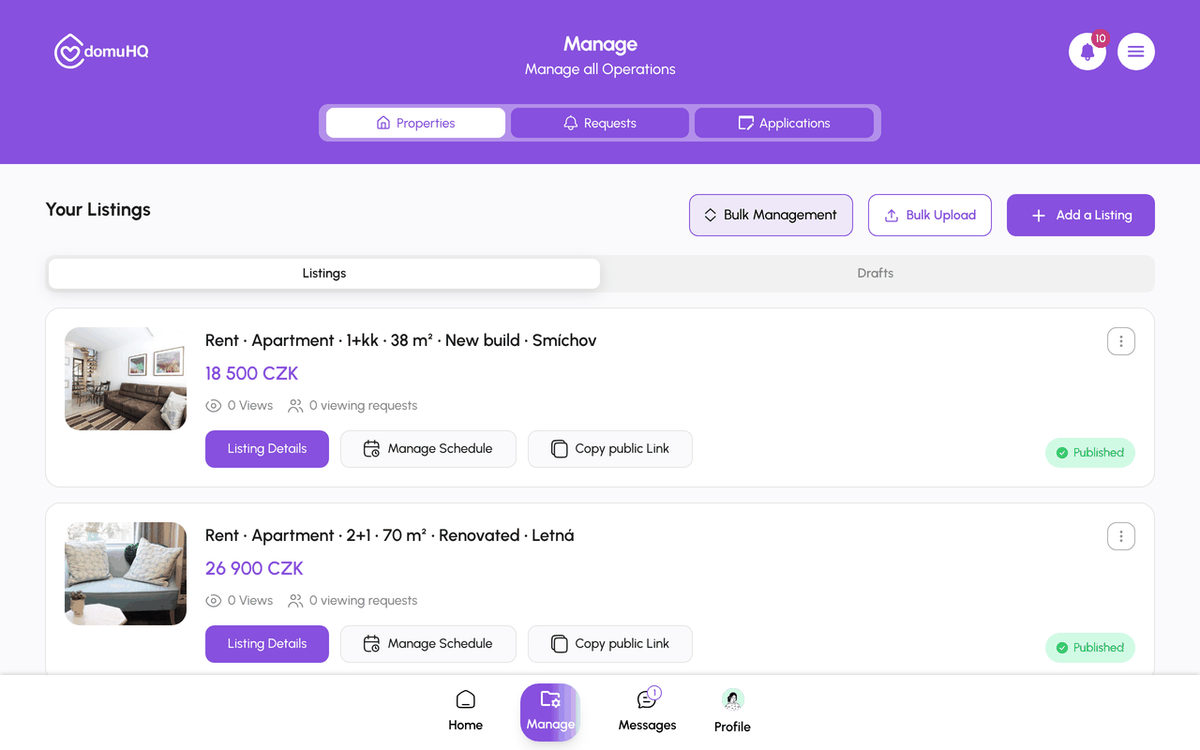
- Published: live and searchable. Availability inside Published is Available, Reserved (you accepted an applicant and are mid-paperwork; new applications pause), or Rented (the pipeline reached move-in).
- Rejected: content review declined it; the notification explains why. Edit and resubmit.
- Verification Failed / Re-upload Required: the listing is live but the document was declined or unreadable. Upload a better document from the listing page.
- Suspended: taken down by the trust and safety team after a report or a policy issue. Contact support@domuhq.cz.
The Listing Status page
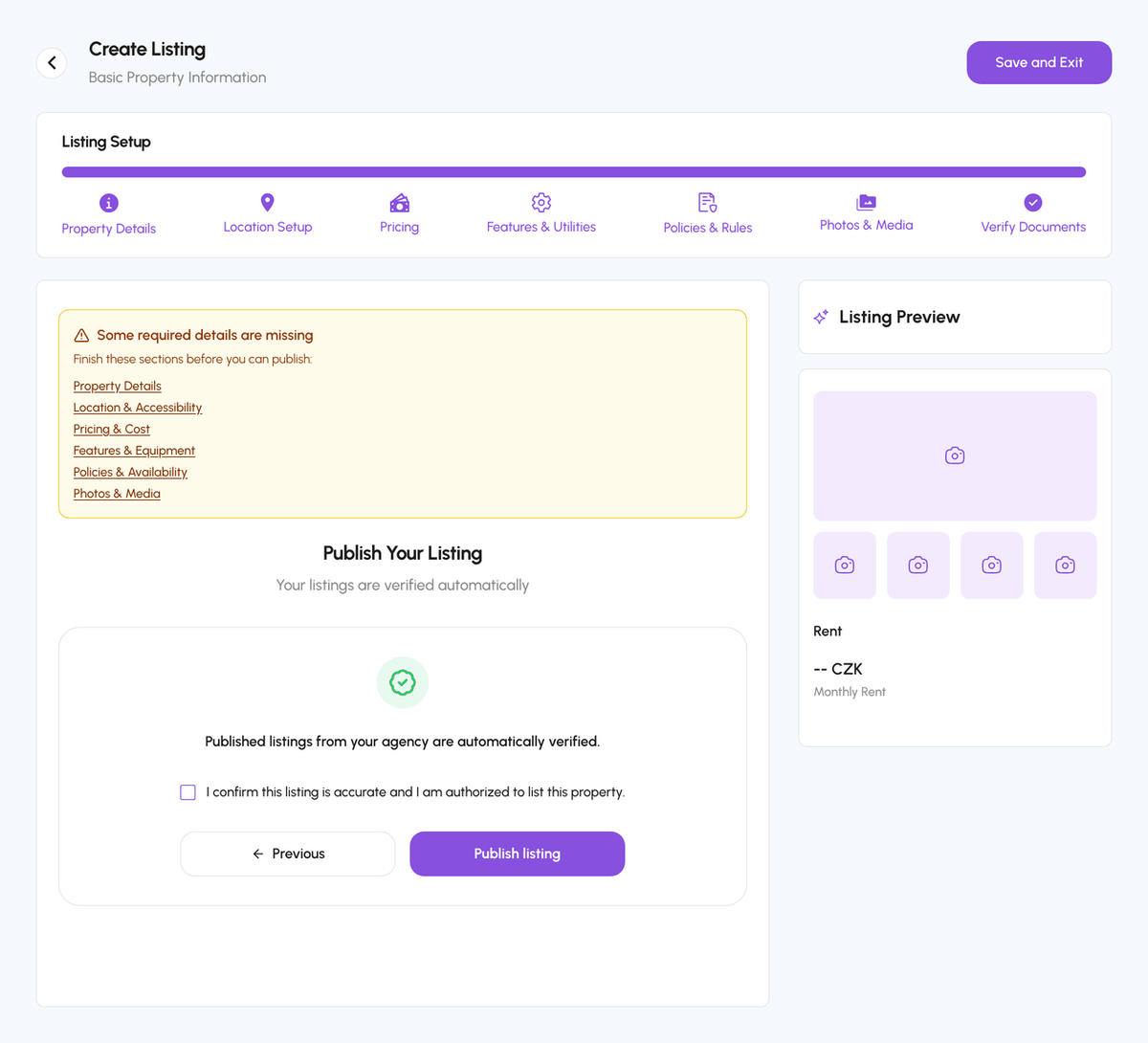
Right after publishing you land on Listing Status: "Listing in Review, we will review in 24 hours" and later "Your Listing is Live!" with an Explore Dashboard button. You can open any listing from Manage to see the same status and its badges.
Accepted documents
- Owners: cadastral extract (výpis z katastru nemovitostí, free at nahlizenidokn.cuzk.cz), purchase agreement, or ownership certificate.
- Tenants subletting or spare-room hosts: your own lease plus written permission from the owner to sublet.
- Agents: an authorisation letter from the owner with the owner's name, your name, the property address, and a signature.
- PDF, JPG, or PNG, up to 10 MB per file.
Verified once, verified always
Professional hosts and agencies can verify the business by IČO instead of per listing; after that every new listing publishes with the badge. See Verify your business with IČO.
Step-by-step
- 1
Publish and wait for review
up to 24 hoursAfter Publish listing you see Listing Status: In Review. Content review takes about 24 hours on business days.
- 2
Get the result
1 minuteA notification tells you Published or Rejected (with a reason). Published listings appear in Explore immediately.

- 3
Check the document result
2 minutesApproved documents add the Verified badge. Verification Failed or Re-upload Required: open the listing from Manage and upload a clearer document.
- 4
Update availability as the deal moves
10 secondsReserved when you accept an applicant, Rented at move-in. The pipeline sets these for you; you can also set them from the listing.
Frequently asked questions
My listing is Published but shows Unverified. Why?
The content passed review; the document has not been approved yet (or was not uploaded). Add or replace the document to earn the badge.
Why was my document rejected?
Common reasons: the name on the document does not match your account, the address differs, the scan is unreadable, or a sublet permission is missing. The notification names the reason.
Can I edit a listing while it is In Review?
Yes. Edits are included in the review.
Related articles
Verify your business with IČO
Professional hosts and agencies verify the business once with their 8-digit IČO; after that every listing they publish carries the Verified badge automatically.
BeginnerManage listings: edit, availability, drafts, public link, delete
The Manage tab is the host dashboard: Properties, Requests, Applications. Each listing card has Listing Details, Manage Schedule, and Copy public Link; from the details page you edit, set availability, or delete.
BeginnerStay safe on DomuHQ: scams, reporting, and blocking
Never pay before you have seen the place and met the host, keep the conversation on DomuHQ, and use Report and Block the moment something feels off.
Beginner