
Manage listings: edit, availability, drafts, public link, delete
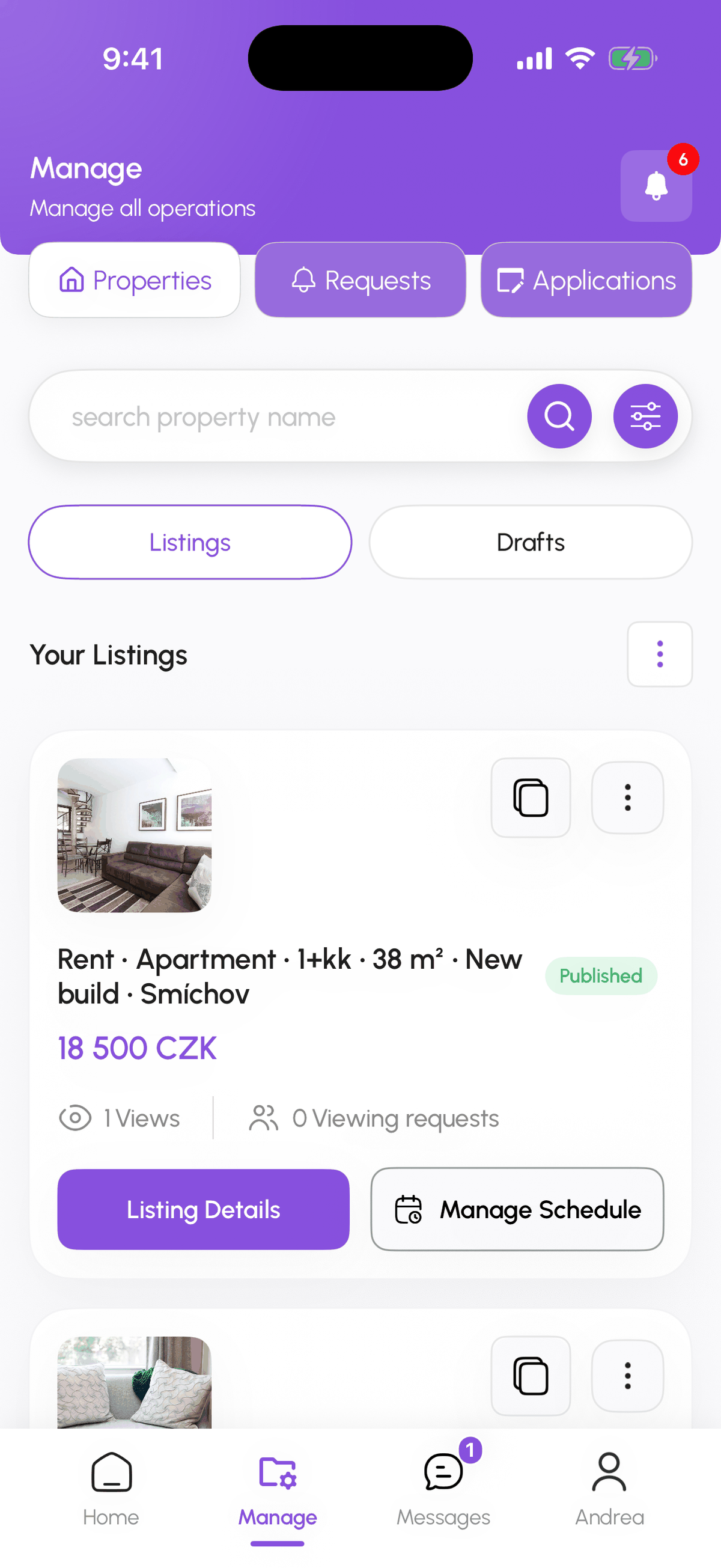
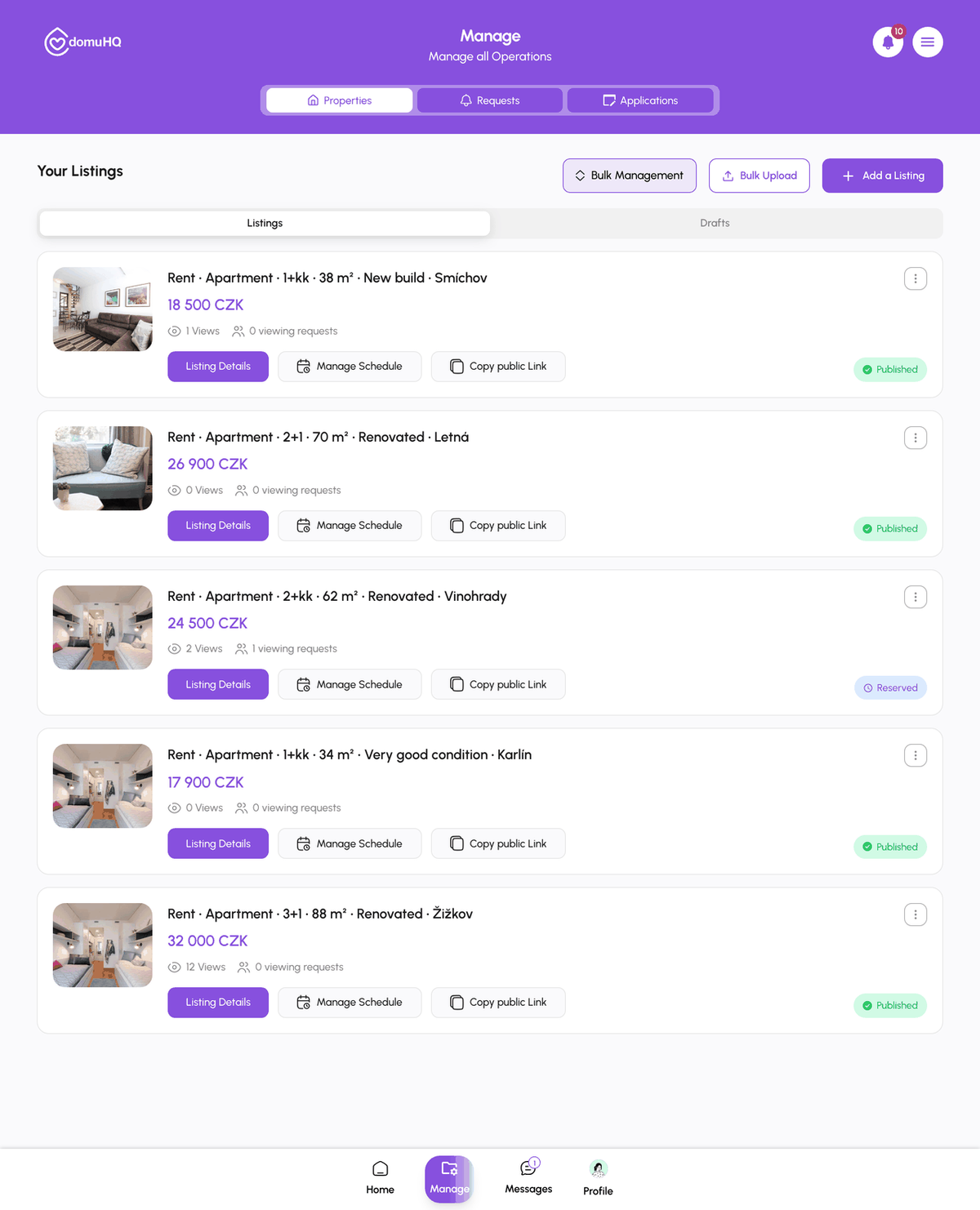
The Manage tab is the host dashboard: Properties, Requests, Applications. Each listing card has Listing Details, Manage Schedule, and Copy public Link; from the details page you edit, set availability, or delete.
The Manage tab
Hosts have Manage in the bottom bar instead of Explore. Properties lists your listings (Listings and Drafts tabs) with Add a Listing, and on Host Premium and Enterprise also Bulk Upload and Bulk Management. Requests holds connection, viewing, and application requests. Applications shows applications you accepted and their pipeline.
A listing card
Photo, title, rent, status chip (Draft, In Review, Published, Reserved, Rented, Suspended, Verification Failed), views and viewing requests, and three actions: Listing Details, Manage Schedule (opens the Available Viewing Slots tab), and Copy public Link. The public link opens the listing for anyone, signed in or not; use it in ads or on other sites.
The three-dot menu on a card holds the rest: Edit Listing; Duplicate Listing, which creates a new draft with the same details and photos so similar units in one building take a minute each (drafts cannot be duplicated); Set Availability; Deactivate Listing, which takes a live listing out of search without deleting it, so its history, requests, and applications stay; Get Verified for unverified listings; and Delete Property.
Listing Details
The full listing with counters for Total Views, Application Requests, and Scheduled Viewings, and four tabs: Property Details, Upcoming Viewings, Application Request, and Available Viewing Slots. From here you edit any field (Edit Listing reopens the wizard at the step you pick), replace photos, change the price, or upload a better verification document. Changes save immediately; price and photo changes reach renters within a minute, and applicants with an open application keep the terms they applied under.
Availability
Set Property Availability on the listing offers Available and Reserved. Reserved keeps the listing visible with a Reserved badge, pauses new applications, and keeps existing chats alive; use it when you have accepted someone and are mid-paperwork. When the pipeline reaches move-in the listing becomes Rented.
Drafts
Manage, Properties, Drafts holds listings saved with Save and Exit and drafts created by bulk upload. Open one to continue, or tick several and tap Submit selected for review. Submitting more than your plan allows shows "Submitting these drafts would exceed your tier's listing limit."
Deleting
From Listing Details choose Delete listing and confirm. Deletion is permanent and removes the listing from search, saved lists, and comparisons; open applications are closed and the applicants notified. If you may relist later, set it to Reserved or leave it as a draft instead.
On iPhone
The same Manage tab exists in the app with Properties, Requests, and Applications. Editing a listing in the app currently covers the main fields; availability schedules and messaging templates are marked coming soon there and are complete on the web.
Step-by-step
- 1
Open Manage
5 secondsTap Manage in the bottom bar. Properties is selected.
- 2
Open Listing Details
30 secondsTap Listing Details on a card. Use the tabs: Property Details, Upcoming Viewings, Application Request, Available Viewing Slots.

- 3
Edit or change availability
2 minutesEdit Listing to change fields or photos; Set Property Availability for Available or Reserved.
- 4
Share the public link
5 secondsCopy public Link on the card and paste it anywhere.
- 5
Drafts and deletion
10 secondsDrafts tab to resume or Submit selected for review; Delete listing from Listing Details when a property is gone for good.

Frequently asked questions
Can I pause a listing?
There is no pause. Set it to Reserved to stop new applications while keeping the page and chats, or delete it if it will not come back.
Do existing applicants see a new price?
Their application keeps the terms they applied under; new applicants see the new price.
Why is my old photo still showing?
Browser cache. Hard refresh (Cmd+Shift+R or Ctrl+Shift+R) or wait a minute.
Related articles
Listing review, the Verified badge, and listing statuses
What In Review, Published, Reserved, Rented, Suspended, Verification Failed, and Re-upload Required mean, and how the Verified badge is earned.
BeginnerSchedule and manage viewings
Hosts set a weekly availability schedule per listing; renters book a slot from the chat with Schedule a Viewing; both sides confirm, reschedule, or cancel from Requests and the chat.
BeginnerBulk-upload listings from a spreadsheet
Host Premium and Host Enterprise can create up to 50 draft listings from one .xlsx file: download the template, fill one row per listing, upload, review the validation, create drafts, add photos, submit for review.
Intermediate